Appearance
Imports
Imports bring lots of records into ShelterSync at once from a spreadsheet (a CSV file), so you don't have to type them in one at a time. You can import animals, volunteers, or fosters. This page lists your past imports and is where you start a new one.
Who can use this page: administrators (importing creates records in bulk, and importing people creates accounts).
Who can see the rows of a people import: the rows of a volunteer or foster import hold people's personal details, so seeing them takes the same permission as running that import. Someone who can use this page but can't import volunteers (or fosters) still sees that import and its counts, but not its rows, and can't apply it: the wizard says so where the rows would be and beside Continue to apply, and suggests contacting an administrator.
How importing works
You upload a spreadsheet, ShelterSync checks every row and shows you what it found, and nothing is saved until you confirm. So an import is safe to try — if rows have problems, you'll see them before anything changes, and you can fix your file and upload again.
The import wizard, step by step
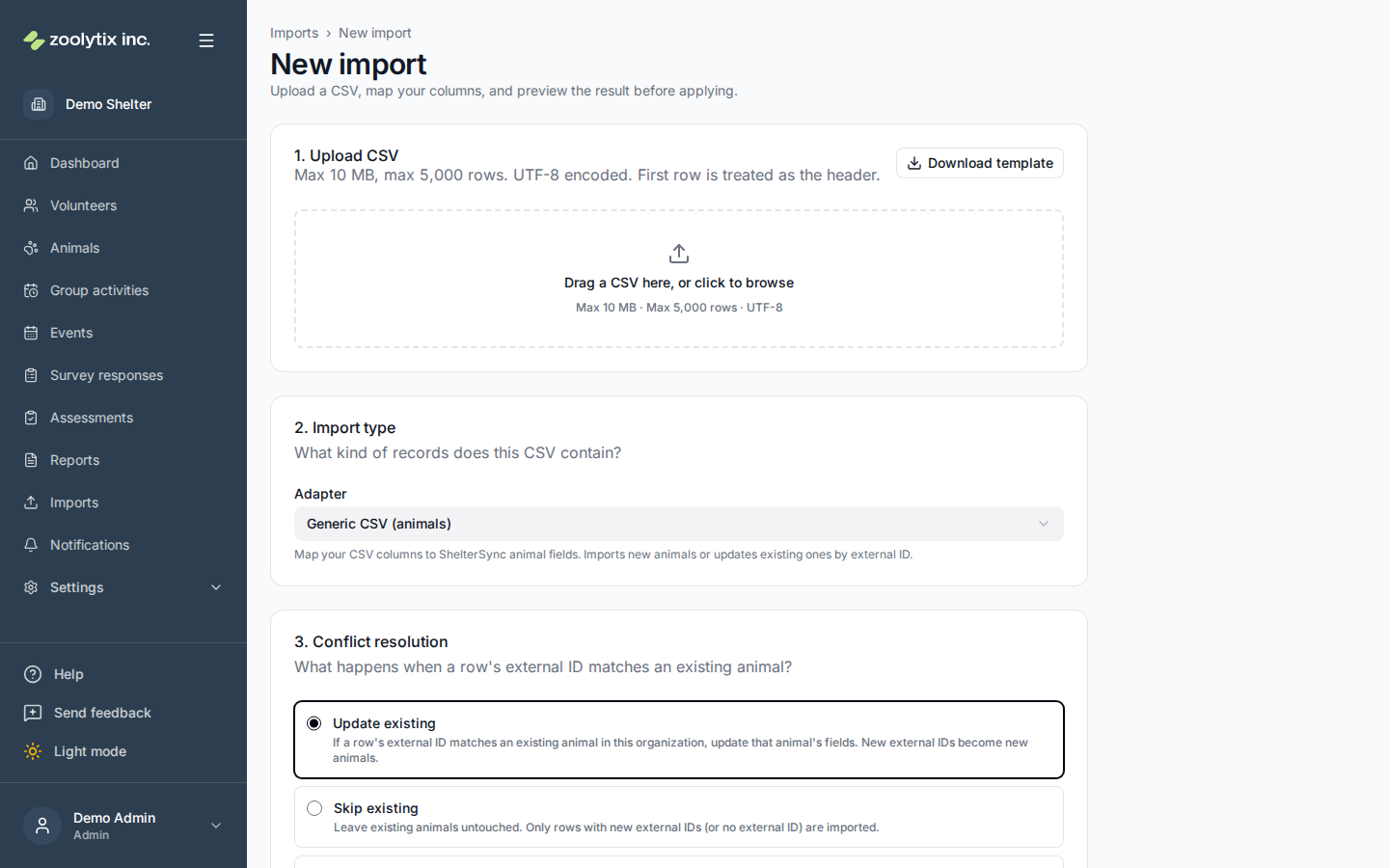
Click Start a new import to open the wizard:
- Choose what you're importing — animals, volunteers, or fosters.
- Upload your CSV — drag in the file. If you're not sure of the format, download the matching template first (see below).
- Map your columns — match each column in your file to the right ShelterSync field. The wizard auto-matches common names; you fix any it couldn't.
- Preview — ShelterSync validates every row and shows what will be created, along with any warnings (rows that need attention) and errors (rows it can't import).
- Confirm — for people imports you'll first confirm a personal-data acknowledgement. Then confirm to apply.
- Result — see exactly what was created, skipped, or failed.
Apply within 90 days
Apply an import within 90 days of uploading the file. After that it has expired: the wizard says so and it can't be applied, so upload the file again to start a new import.
90 days after the import is applied, or after the upload if it never was, the uploaded file and the details copied from each row are removed. Each problem the import found loses the cell value it quoted, and its message is replaced with a short note; the column and how to fix it stay. The import's counts and each row's result stay on this page, and the animals and people the import brought in are not affected.
Templates
Each import type has a template — a spreadsheet with the right column headings — that you can download from the upload step. Starting from the template is the easiest way to get your columns right. There are templates for animals, volunteers, and fosters; the wizard offers the one that matches what you chose to import.
After importing people
Importing volunteers or fosters creates their accounts but does not set a password. When they're ready to sign in, send them an invite. You can do this for many people at once: on the Users page, select the imported people and use Bulk actions → Send invites.
Fields explained
| Field | What it means |
|---|---|
| Status | Where the import is in its lifecycle — validated, applied, or failed. |