Appearance
Send feedback from the phone
If something in the ShelterSync phone app doesn't work, is confusing, or could be better, you can tell the ShelterSync team from the app itself, at the moment you notice it. You don't need to find a member of staff or get to a computer.
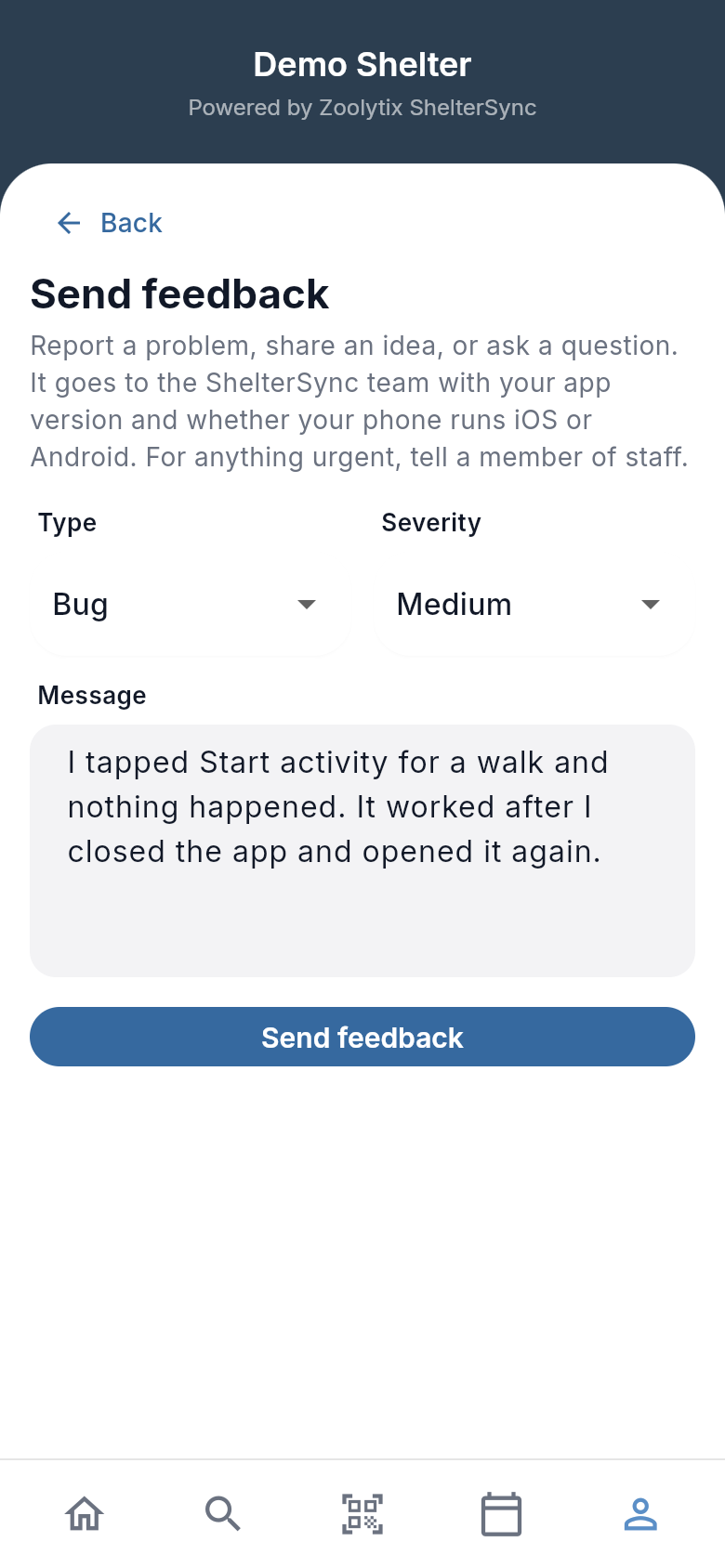
Who can use this: anyone signed in to the phone app, including while your phone is still waiting for your shelter to approve it — see While your phone is waiting for approval.
Send feedback
- Tap Profile in the bar along the bottom of the screen. This works on any screen that has the bar, even when Profile is already highlighted there — on Security, for example, it takes you back to your profile.
- Tap Send feedback.
- Choose a Type: Bug when something isn't working, Idea for something you'd like the app to do, or Question.
- Choose a Severity, from Low to Blocker. Choose Blocker when the problem stops you doing what you came to do.
- Under Message, say what happened. Include which screen you were on — the report can't tell — and it helps to say what you were doing, what you expected, and what happened instead.
- Tap Send feedback.
Change password has no bar. From there, tap Back first.
The message is the only thing you have to fill in. Type and severity start at Bug and Medium, so change them if they don't fit.
While your phone is waiting for approval
Your shelter may need to approve a phone before you can use the app on it. Until it does, the app shows Approval request sent, with Check status to see whether it has been approved.
If something is wrong while you wait — it's taking longer than you expected, or you can't get in — tap Send feedback on that screen. It opens the same form: fill it in and send it as in steps 3 to 6 above. Done, or Back if you change your mind, takes you back to the waiting screen; if you've entered something that isn't sent, Back asks first, as described in If it doesn't send.
If your shelter blocks the phone instead, the app signs you out the next time it contacts ShelterSync, for example when you tap Check status or send, and signing in again says the device has been blocked: ask an administrator to restore access. Home and the rest of the app open once your shelter approves the phone. Sending feedback doesn't approve it or ask your shelter to: for that, talk to a member of staff.
Your tracking ID
Once your feedback is sent, the app shows its tracking ID, for example FB-1042. If you get in touch about the same thing later, quote the tracking ID so the team can find your report straight away.
On rare occasions the app says your feedback was sent but shows no tracking ID. It was still sent; the app just couldn't read the ID. Tell the team roughly when you sent it instead.
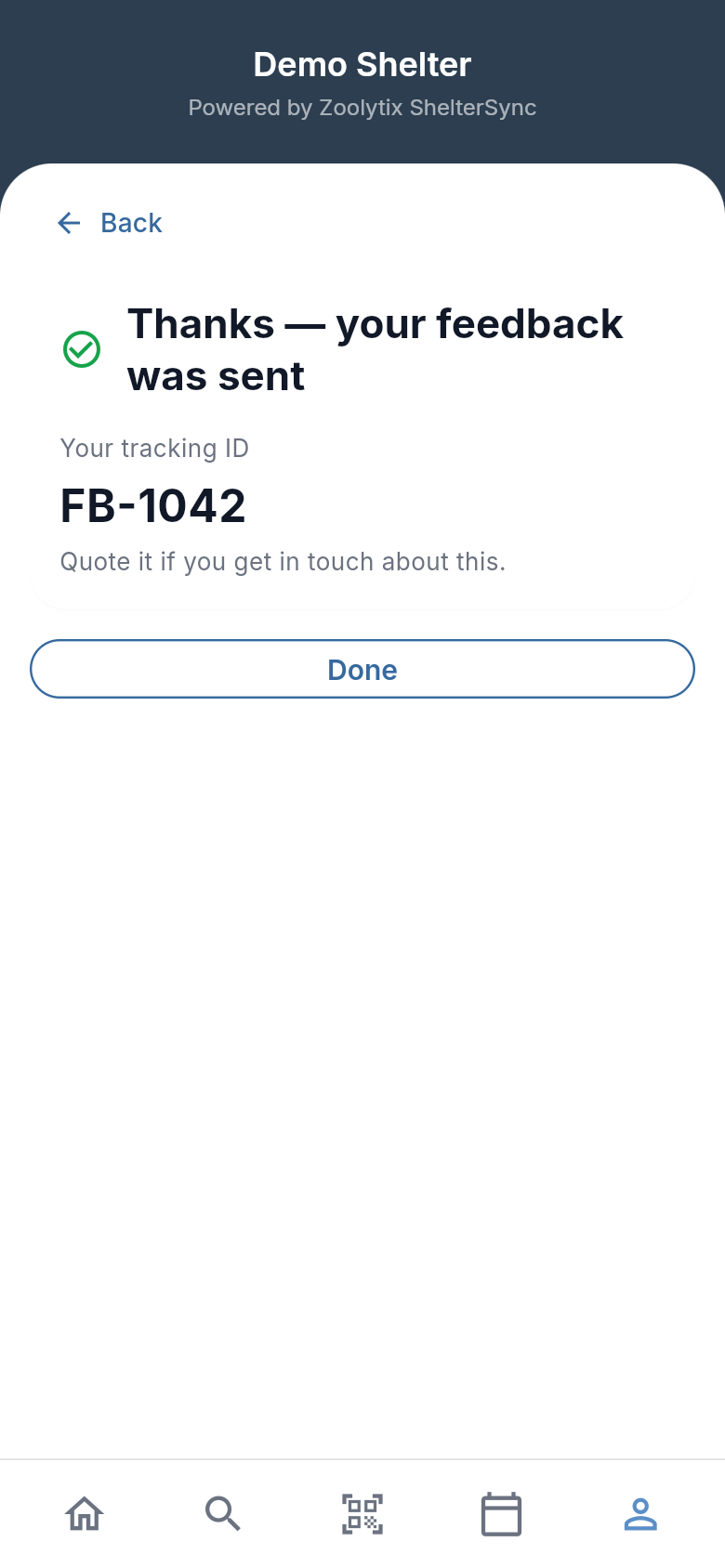
Tap Done to go back to your profile, or to the waiting screen if you started there.
If it doesn't send
If your phone has no signal, or something goes wrong on ShelterSync's side, the app tells you it couldn't send your feedback and keeps what you wrote: your message, type and severity stay on the screen, with Send feedback in view. Tap it again when you have a connection.
ShelterSync takes up to 10 sends from you in each 15-minute period, which starts when you send the first of them, counting the phone app and the web app together. Past that, the app says it couldn't send your feedback, adds Too many feedback messages. Please try again later., and keeps what you wrote in the same way. The period is over at most 15 minutes later: tap Send feedback again then.
What you wrote is kept only while you stay on that screen. If you tap Back or a tab in the bar along the bottom, or the bar showing a running activity, or use your phone's back button or gesture, before your feedback is sent, the app first asks Discard your changes?: tap Keep editing to stay, or Discard to leave, and the message is lost. On an iPhone, swiping in from the left edge does nothing while there is something to lose; tap Back instead. If the app signs you out, the message is lost without asking.
What is sent with your feedback
Along with your message, type and severity, ShelterSync records:
- who sent it and from which shelter — taken from your sign-in, so the team knows who to follow up with;
- that it came from the phone app, which version of the app you're using, and whether your phone runs iOS or Android;
- whether you opened Send feedback from your profile or from the waiting screen.
To see which version you have, for example when you ask someone for help, look at the end of your Profile, under Delete your data, or at the foot of the sign-in screen or the screen that says your phone is waiting for approval: it reads something like Version 0.38.0 (build 56).
It does not record which screen the problem was on, only where you opened Send feedback. Put the screen in your message. It does not include your phone's model or name either, and you can't attach a screenshot from the phone app, so describe what you saw.
Who reads it
Your feedback goes to the ShelterSync team, into the same list as feedback sent from the web app.
Your shelter is not sent your message. Its Activity & security log does record that you sent feedback, with its type and severity, and the updates the ShelterSync team makes to it afterwards — its status, the team's notes, and any linked issue number. Anyone at your shelter who can view that log can see those entries.
For anything urgent at the shelter — about an animal, or your own safety — tell a member of staff.