Appearance
Trial signups
When someone fills in the sign-up form on the ShelterSync website, their request lands here. This page is where the Zoolytix team reads those requests, decides on them, and looks after the trials they turn into.
What you can do here
- Review a new request and mark it Contacted
- Count the requests that used a promotional code
- Approve a request and set up its trial organization
- Decline a request
- Retry the sample-data seed after a failure
- Extend a trial, or bring an expired one back
- Convert a trial to a paying organization
- Delete a request when the applicant asks
- Edit who is emailed when a request arrives
What a request is — and is not
A request is a row in this list and nothing more. Filling in the form never creates an organization: nobody can sign themselves up and start using ShelterSync without a person on the Zoolytix team looking first. The row holds what the applicant typed (name, email, organization, its size, the software they use today, a message, and a promotional code if they had one), which kind of trial they asked for, and the record of what they agreed to — the privacy notice version and when they accepted it, and their confirmation that they are an adult.
There are two kinds of request:
- Sandbox — free. Approving one builds a ready-made sample shelter, with animals, people and a few weeks of activity, so the applicant can explore the product. It ends after 14 days.
- Pilot — paid. Approving one builds an empty organization for the shelter's own data. It ends after 30 days.
The lifecycle
Every request moves through a fixed set of statuses. The first two are yours to set by hand; the rest move with the actions on the request.
| Status | Meaning |
|---|---|
| New | Just arrived. Nobody has looked yet. |
| Contacted | Someone has been in touch with the applicant. Set it yourself from the request. |
| Provisioning | Approval is in progress — the organization is being created. Lasts seconds. |
| Approved | The organization exists and the invite has gone out (for a sandbox, the sample data may still be loading). |
| Active | The applicant has signed in for the first time. |
| Expired | The trial reached its end date and the organization was switched off. |
| Converted | The trial became a paying organization. |
| Declined | Turned down. |
Two badges can sit next to the status. Expired on its own means the end date has passed but the hourly sweep has not switched the organization off yet. Seeding…, Seed failed and Seed stale describe the sample-data load on a sandbox — see below.
Reviewing a request
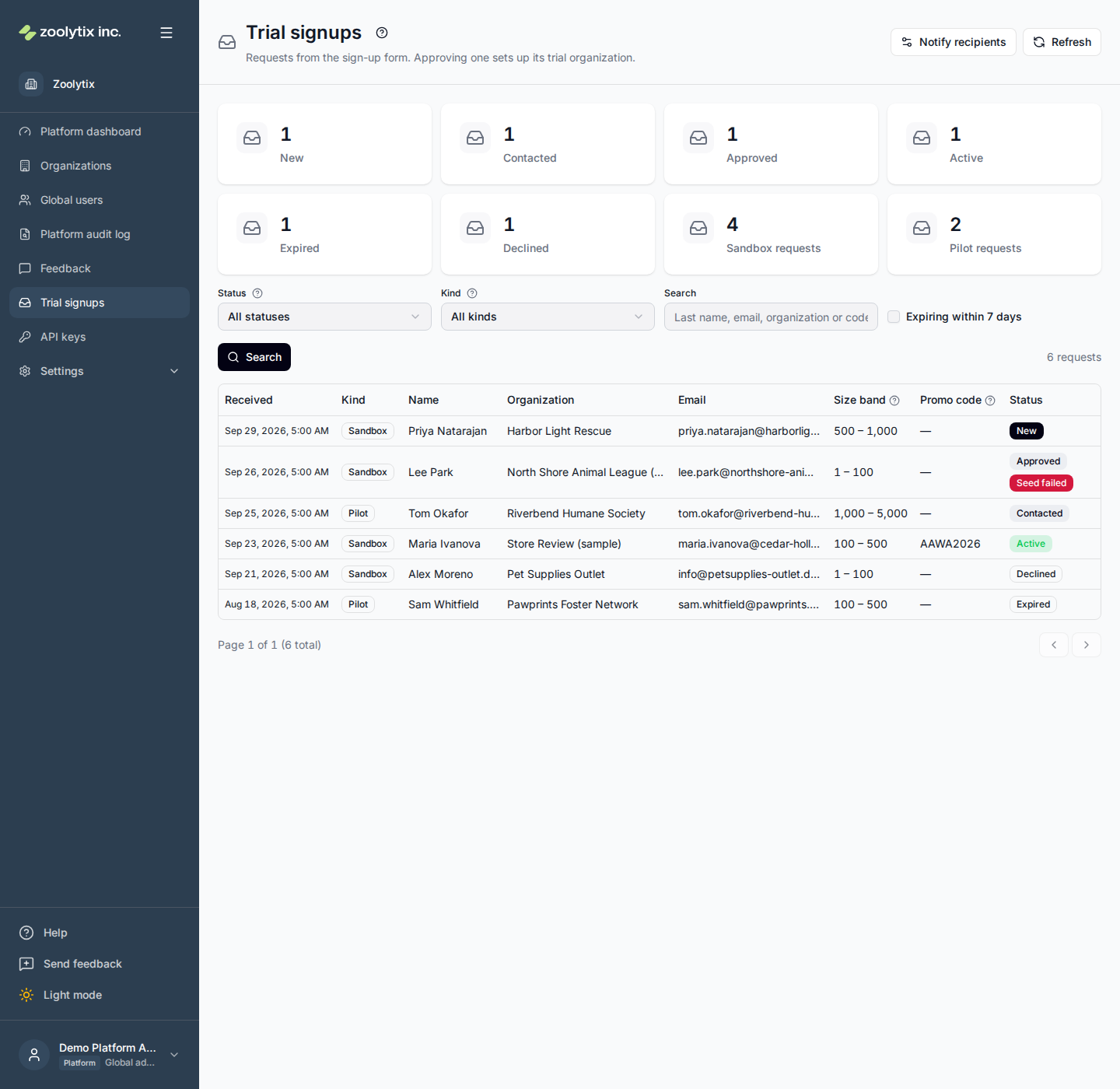
Use the cards at the top to see how many requests are in each state, and click one to filter the list to it. Filter by status or kind, search by last name, email, organization or promotional code, or tick Expiring within 7 days to see the trials that need a decision soon.
Click a request to open it. You can read everything the applicant typed, add notes for the team (the applicant never sees them), and move a request between New and Contacted while you talk to them. Everything else happens through the buttons at the bottom of the request.
Every request also arrives by email to the people on the notify list, with a link that opens it straight from the message.
Promotional codes
A request can carry a promotional code, such as AAWA2026 from a card handed out at a conference. It shows in the list's Promo code column and on the request, in capitals however the applicant typed it. A request without one shows a dash.
The applicant enters the code in the sign-up form's box If you have a promotional code, enter it here. A link can fill the box in for them: the card's QR code opens /signup?code=AAWA2026, and the form opens with AAWA2026 already in the box. They can still change it or clear it before sending, so the request carries the code that was in the box when they sent it, not the one in the link.
The code is only recorded. Nothing checks it against a list of codes, and it does not change what anyone pays: if the offer applies, you honour it by hand in the written agreement. Check the offer's own terms, such as its end date and who it is for, before you do.
To count how many times a code has been used, for an offer limited to a number of customers:
- Type the code in Search and press Search. Capitals don't matter for plain letters, but a letter whose capital is different, like ß (stored as SS), has to be searched in its capital form. The search also looks at last names, emails and organizations, so glance at the Promo code column to be sure each row carries the code.
- Count the requests whose status is Approved, Active, Expired or Converted. Those are the requests that were approved.
The number of requests shown beside Search counts every request your filters match. With Status on All statuses that includes New, Contacted, Provisioning and Declined requests, so it is not the count on its own. You can instead set Status to Approved, Active, Expired and Converted in turn and add up the four numbers.
When an applicant's whole ShelterSync account is deleted, the code is removed from their request along with their name and other details, so that request no longer counts toward the offer's limit.
Approving a request
Approve is the moment an organization comes into being. The confirmation tells you exactly what will happen for the kind of request in front of you, so read it before you confirm. You can change the organization's name (it starts as what the applicant typed), pick its web address (the slug — normally leave it blank to have one generated), and change how many days the trial runs. A reason is required and goes into the audit log.
For a sandbox, approval:
- creates a dedicated organization from the demo template, with the trial limits applied;
- invites the applicant as its administrator;
- seeds the sample shelter in the background — this takes a few minutes, and the request shows Seeding… while it runs;
- when the seed finishes, emails the applicant their sign-in link together with one-time sample staff and volunteer accounts so they can see the other sides of the product.
The sample passwords are sent exactly once. If the applicant loses them, they can still reset their own password; the sample accounts are not re-issued.
A sandbox is set up like any new shelter, and the sample data does not change that. It requires device approval for volunteers and fosters, so the first phone or browser the sample volunteer signs in on waits until the applicant approves it under Settings → Devices. The applicant is asked to set up an authenticator app the first time they sign in. The ready email tells them both.
A sandbox carries limits so that a trial held by someone who is not yet a customer cannot be misused: no API keys, no integrations, no text-message sign-in, 2 GB of photos and files, and at most five people including the applicant. Each limit tells the person who hits it that converting the organization lifts it.
For a pilot, approval creates a clean organization from the provisioning template, invites the applicant as its administrator, and emails them their sign-in straight away. There is no seed and no sandbox limits — it is an ordinary organization with an end date.
If approval is refused — the request was already approved by someone else, the chosen slug is taken, the applicant's phone number already belongs to a user, or the template is missing — the reason stays on the confirmation so you can fix it and try again.
The sample-data seed
Only a sandbox has a seed, and it can fail (for example when storage is briefly unavailable) or stall. The request then shows Seed failed with the error, or Seed stale when it has been running for more than half an hour. Retry seed wipes whatever partial sample data was loaded, sets the organization's settings up again as approval did, limits included, and seeds it again from scratch; a fresh invite is emailed when it finishes.
Retrying is only offered while the applicant has not signed in yet. Once they are in, re-seeding would wipe and replace an organization someone is using, so the button goes away.
Expiry and extension
Every trial has an end date, set when you approve it. An hourly sweep looks for trials past their date and switches the organization off — sessions end, integrations stop, and nobody can sign in — and marks the request Expired. Nothing is deleted.
Extend picks a new end date. If the organization had already been switched off, extending it switches it back on and the request returns to Approved or Active. Use it when a conversation is in progress and the applicant needs more time.
Converting a trial
Convert to paying is how a trial becomes a customer. It clears the trial limits and the end date, makes the organization an ordinary one (a sandbox stops being a "sample" organization), and reactivates it if it was switched off. The request becomes Converted and is kept for good. A reason is required, and the conversion is written to both the platform audit log and the organization's own audit log, where its administrators can see it.
Declining a request
Decline turns a request down. Tick Email the applicant a short note to send them a brief message saying so; leave it unticked to decline quietly. A reason is required for the audit log; the applicant does not see it. A declined request cannot be approved later — they can fill in the form again.
How long requests are kept
Requests that never turn into a paying organization — declined, expired, or simply never acted on — are kept for 12 months after their last change and then removed automatically. The request shows the date it will be removed.
Deleting a request
Someone who filled in the form but never became a user is still entitled to ask that their information be removed, and the usual account-deletion route cannot find them because they have no account. Delete request is for that: it removes the request and everything they typed, immediately and for good, with a reason recorded in the audit log.
It is refused while an organization provisioned from the request still exists — delete that organization first (from its page under Organizations), and the request is unlinked when it goes.
Notify recipients
Notify recipients in the page header edits who is emailed each time a request arrives. It is one list for the whole platform. Keep it to the people who actually review requests — with nobody on it, requests still land here, but nobody is told.
Fields explained
| Field | What it means |
|---|---|
| Status | Where the request is. New and Contacted are yours to set by hand while you talk to the applicant. Everything after that moves with the buttons: Approve makes it Provisioning then Approved; it becomes Active the first time the applicant signs in; the trial's end makes it Expired; Convert to paying makes it Converted; Decline makes it Declined. |
| Kind | What the applicant asked for. A Sandbox is free, comes filled with sample animals and people, and ends after 14 days. A Pilot is paid, starts empty for the shelter's own data, and ends after 30 days. The kind decides what approval sets up. |
| Size band | How many animals the applicant said their organization handles in a year. It is what they typed on the form, for context — it does not change what the trial can do. |
| Promo code | The promotional code the applicant entered, shown in capitals. It is only recorded — nothing checks it against a list of codes or changes the price. To count a code's uses, search for it and count the requests that are Approved, Active, Expired or Converted. The number beside Search counts every request your filters match, so with Status on All statuses it includes New, Contacted, Provisioning and Declined requests too. When an applicant's whole ShelterSync account is deleted, the code is removed from their request with their other details, so that request no longer counts. |
| Reason | Required for approve, decline, convert and delete. It is written into the audit log next to the change, so say what was decided and why — 'confirmed by phone, municipal shelter with three staff' is useful; 'ok' is not. The applicant never sees it. |
| Trial days | How long the trial runs from the moment you approve — 14 days for a sandbox, 30 for a pilot unless you change it. When the trial ends the organization is switched off until someone extends or converts it; you can extend it later from the request. |
| Notify recipients | The people emailed each time a request arrives, with a link straight to it. One list for the whole platform; keep it to the people who review requests. With nobody on it, requests still arrive here — nobody is told. |