Appearance
Your first day on the phone
New to volunteering with ShelterSync? This page takes you through the phone app, from the invitation email to the survey after your first activity. Each step says what you see on the screen and what to tap.
Some steps only happen if your shelter has set them up, so you may not see all of them. Those steps are marked Depends on your shelter, and What depends on your shelter lists them together.
1. Set up your account
Your shelter sends you an email inviting you to join it on ShelterSync.
- Open the email and tap the Set up your account link. The link expires in 72 hours. If it has run out, ask your shelter to send a new invitation.
- The page that opens asks for your Date of birth if your shelter doesn't already have it. It is used to apply the right privacy protections to your account, and is never shown to other volunteers or included in reports.
- Choose a password and enter it under Password. Your shelter's rules for passwords are listed under that box. Enter the same password again under Confirm password.
- Tap Set up account.
- The page says Your account is ready, with links to get the phone app from the App Store (iPhone) or Google Play (Android). Sign in on the web takes you to the web app's sign-in instead.
The invitation email has the same links to the app, and one to sign in on the web. Some shelters send a password reset email instead of an invitation. Its link reads Set your password and expires in 30 minutes. If your shelter doesn't have your date of birth, the page that link opens asks for it too, like the invitation's page. If the link opens in the phone app instead, the app asks for it the same way, above New password. See Setting or resetting your password.
2. Get the app and sign in
- Install the ShelterSync app from the App Store or Google Play, or from the links in your email.
- Open the app. The sign-in screen says Volunteer portal.
- In the Email or phone box, enter your email address, or the phone number your shelter has for you. Enter your password in the Password box.
- Tap Sign in.
- If you volunteer at more than one shelter, the app asks which one under Select an organization. Tap your shelter, then tap Sign in again.
Depends on your shelter: your shelter can ask your role for a second step at sign-in. If it does, the app asks for a code next: one sent to your phone or email, or one from an authenticator app you have set up. If your role must use an authenticator app and you haven't set one up yet, the app shows MFA setup required instead, with only Back to login. Set the authenticator app up in the web app first, where signing in walks you through it (see Signing in), then sign in on the phone again. New shelters start with an authenticator app required for administrators and staff.
Once you are signed in, the dark bar at the top of every screen names your shelter. If you forget your password, tap Forgot password? on the sign-in screen: see In the mobile app.
3. Wait for approval, if your shelter asks for it
Depends on your shelter: a shelter can require each new phone to be approved by one of its administrators before it is used with animals. It decides this role by role. A new shelter starts with it turned on for volunteers and fosters, and each shelter can change that.
- If your shelter doesn't require approval, the app opens on Home as soon as you sign in. Go on to step 4.
- If it does, signing in on a phone your shelter hasn't approved yet shows Approval request sent. Your shelter's administrators then approve the phone.
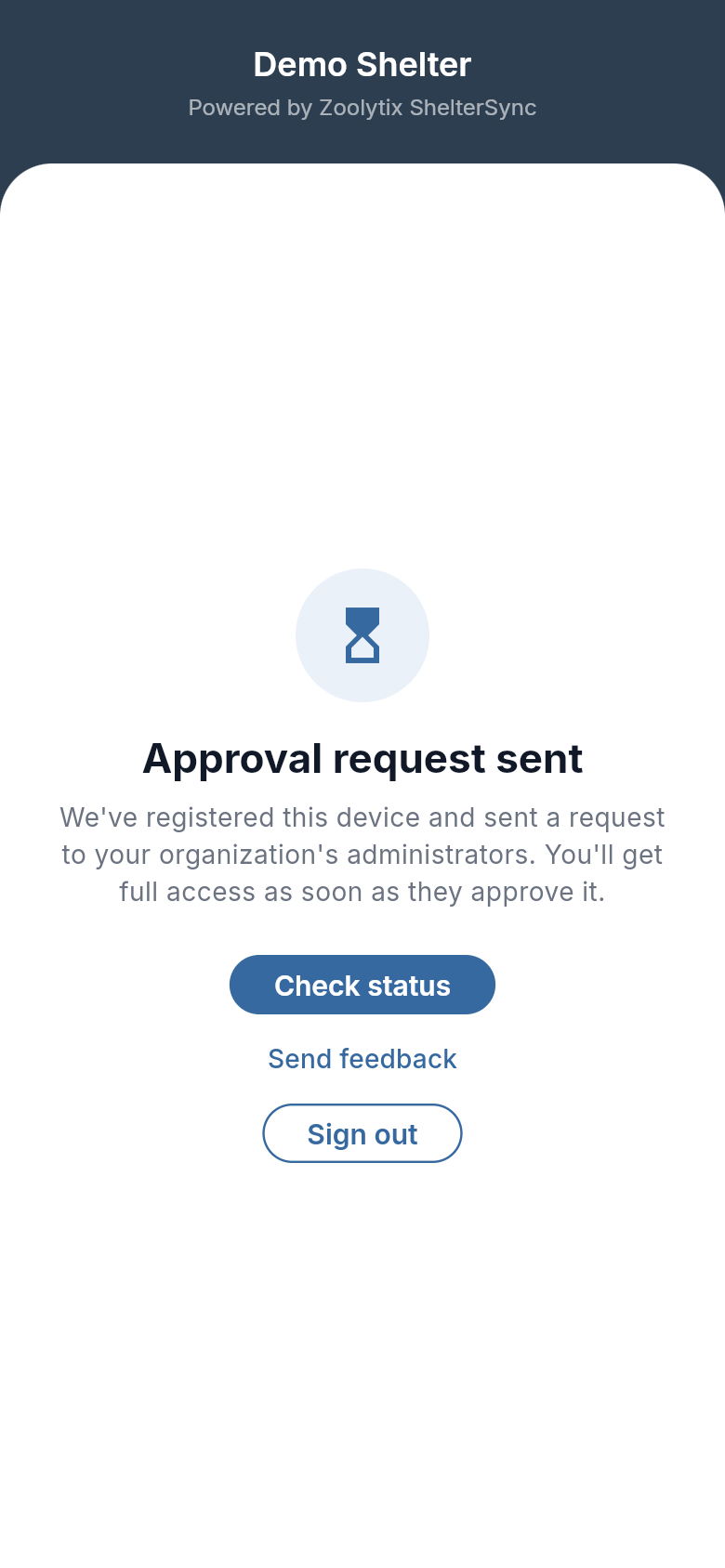
While you wait:
- The screen does not update by itself. When your shelter tells you your phone is approved, or whenever you want to find out, tap Check status. Once the phone is approved, the app opens on Home.
- If something is wrong while you wait, tap Send feedback. See While your phone is waiting for approval.
- Sign out signs you out of the app.
For administrators: which roles need approval is set in the web app, under Settings, Organization, Operational policies, in the Device approval column of Role-based policies. Phones are approved on the Devices page.
4. Scan the animal's code
- Tap Scan, the QR code icon in the middle of the bar along the bottom of the screen. The camera opens. The first time, your phone asks whether ShelterSync may use the camera: allow it, because scanning needs the camera. If you said no, you can allow it later in your phone's settings.
- Point the camera at the QR code on the animal's kennel card.
- A card shows the animal's photo and name, with Start activity, View details and Scan another. An animal with no photo shows its initials instead. Check it is the animal you are with, then tap Start activity.
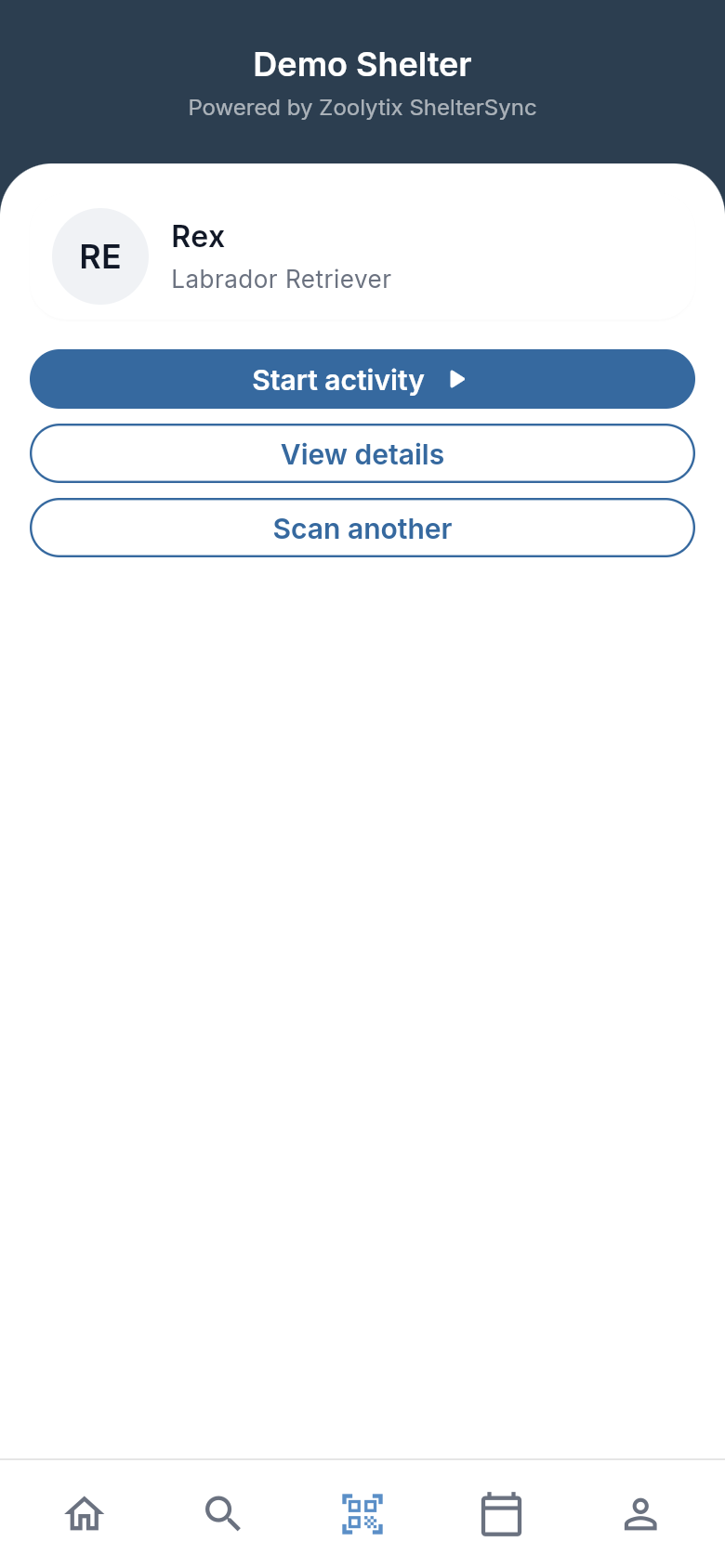
If a code won't scan, tap Browse, the magnifying glass in the bar along the bottom, and find the animal: Search helps. Tap the animal to open its page, where the same Start activity button is.
5. Choose the activity
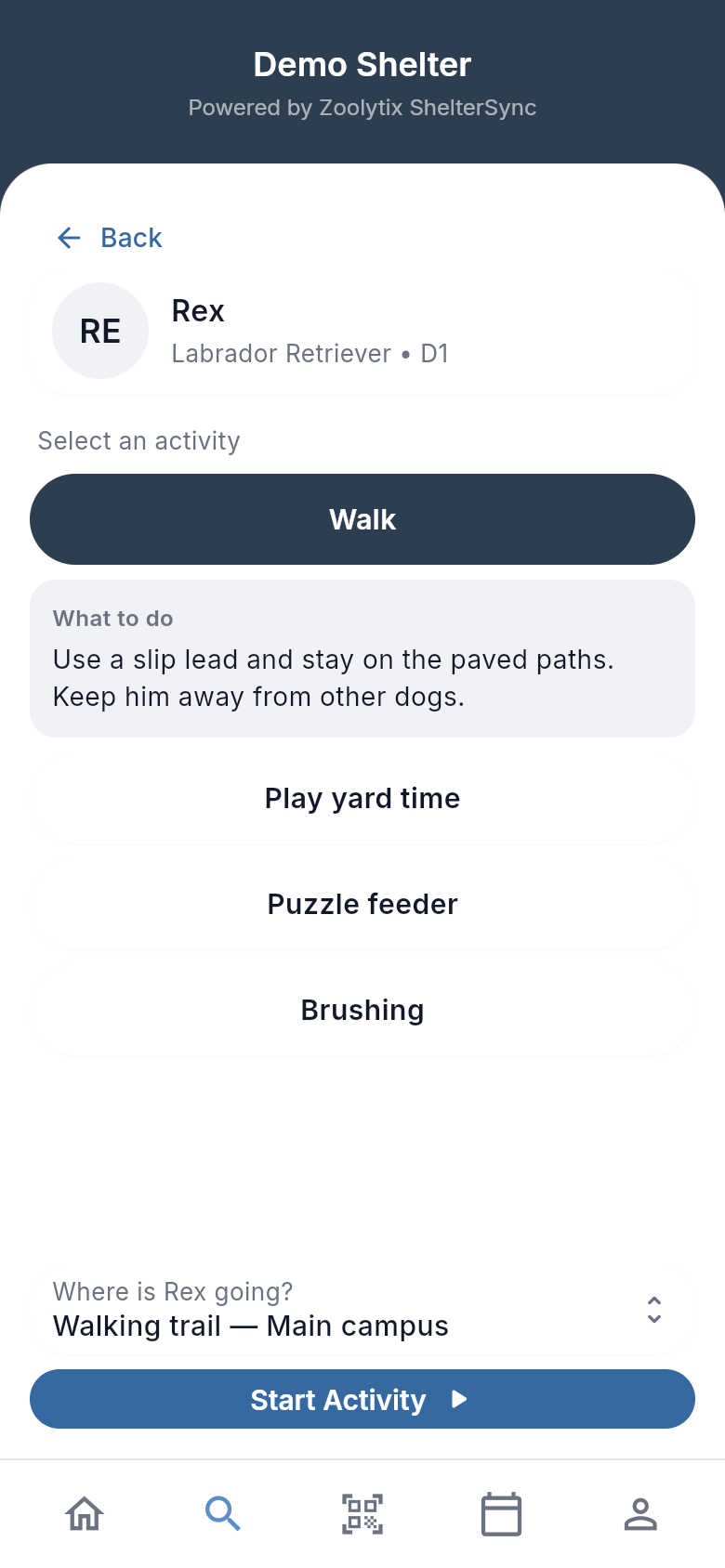
Under Select an activity are the activities your shelter offers for this animal.
- Tap the activity you are about to do. It turns dark to show it is chosen. Choosing an activity doesn't start anything, so you can tap through the list to see what each one involves.
- Depends on your shelter: if your shelter wrote a note for the activity, What to do opens under it. Read it before you start.
- Depends on your shelter: if your shelter set the activity up as one that takes the animal out of where it lives, or can, Where is (name) going? appears just above Start Activity, with the animal's name in it. Tap it and choose the place from the list.
Depends on your shelter: an activity that says Drop-off · no timer under its name is a drop-off, such as a treat left in the kennel. Its button reads Log drop-off, and tapping it logs the drop-off as done straight away: no timer runs and no survey follows. See Drop-offs on the phone, which also covers logging one for a whole kennel row from Home.
If the list is long: when your shelter offers more than six activities for the animal, in two or more categories, the list shows the categories first, each with how many activities it holds. Tap a category to open it. Opening another one closes the first. A closed category that holds your chosen activity says Chosen: and the activity's name.
If the app asks where the animal is going: Start Activity stays off until you answer, and Choose a place above to start. shows above it. For an activity that can happen either where the animal lives or somewhere else, Stays in and the animal's place (for example Stays in D1) is already chosen. Change it only if you are taking the animal somewhere.
6. Start
- Tap Start Activity.
- Depends on your shelter: if the animal needs a cleared handler, a pop-up says (name) needs a cleared handler. Read it. If you are cleared to handle this animal, tick the statement and tap Confirm and continue. What you confirm is recorded with your name and the time. If you are not cleared, tap Not now and ask a member of staff.
- Depends on your shelter: if the activity has steps to follow, a Before you start sheet lists them. Read them, then tap Start Activity on the sheet.
- Skip first folds away the steps that don't need a tick. When there are none of those left to fold, Skip starts the activity if nothing is left to tick, and otherwise closes the sheet without starting it.
- A step with a tick box has to be ticked before you can start, and stays on the sheet when the others are folded. Until every one is ticked, the sheet reminds you to tick them, and Start Activity stays off.
- On a phone that has shown this activity's steps before, the sheet opens with them put away. Tap Show the … handling steps, which says how many there are, to read them again. Steps with a tick box still show, and still have to be ticked. If every step has a tick box, the button under Start Activity reads Cancel instead of Skip: it closes the sheet without starting the activity, whatever you have ticked.
The timer then starts.
7. While the timer runs
The clock starts by itself and counts up.
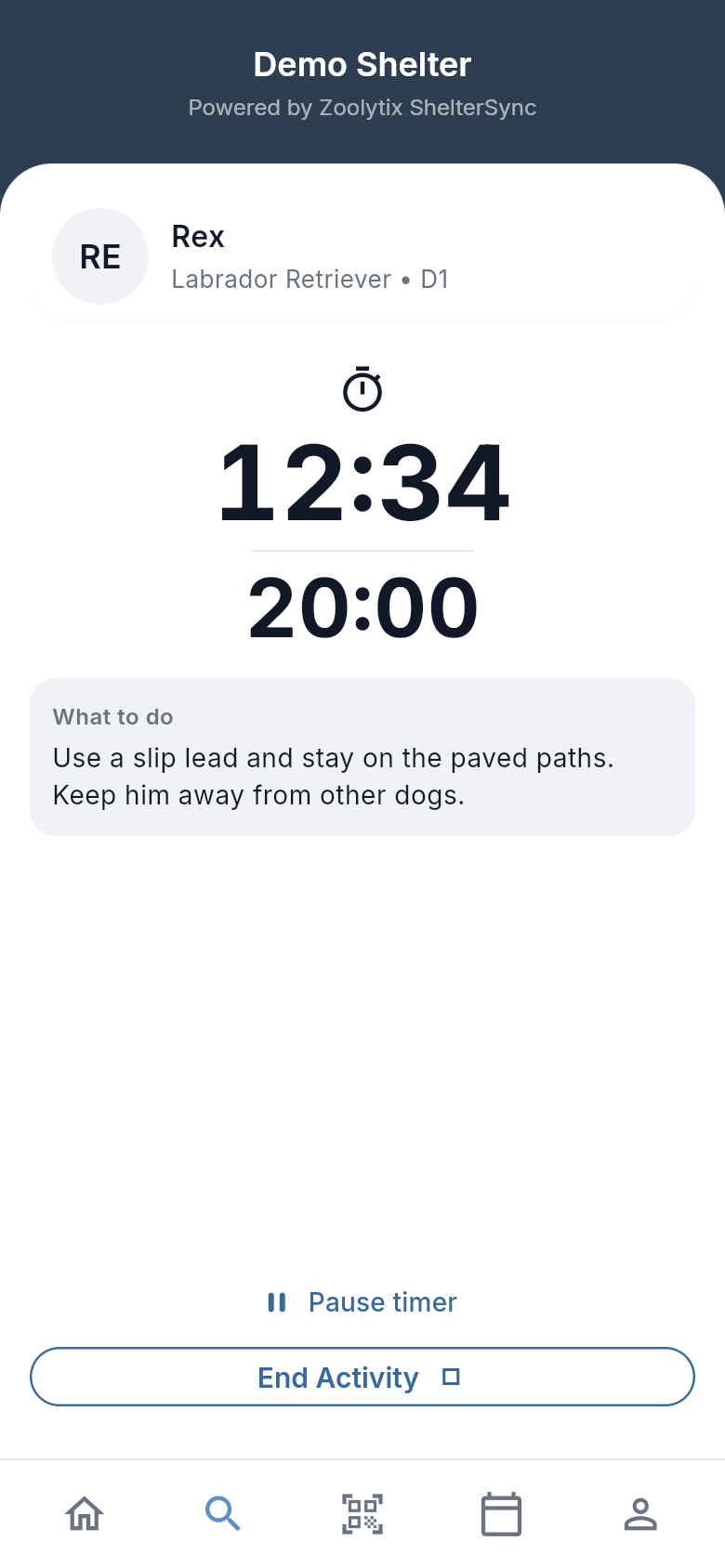
- Depends on your shelter: if your shelter set a target time for this activity, or for this animal, the time under the clock is that target. When you reach it, the numbers turn green.
- Pause timer stops the clock, for a break. Resume timer starts it again. While it is stopped, the screen says Paused. The activity is still going while the timer is paused, and you still end it as usual.
- You can leave the timer, or close the app, and the activity keeps running. While it runs, a dark bar just above the tabs along the bottom names it, for example Walk · Rex, with how long it has run: tap the bar to get back to the timer. Home also shows 1 activity in progress, which you can tap too. See Running activities.
8. End the activity
- Tap End Activity. The End activity sheet opens.
- Return location is where the animal goes back to. It is already filled in with where the animal was when you started. If you are putting it somewhere else, tap it and choose the place.
- If no survey is waiting for this activity, there is a Notes (optional) box. Write how it went, if you like. If a survey is waiting, there is no box: the survey comes next.
- Tap Confirm end activity.
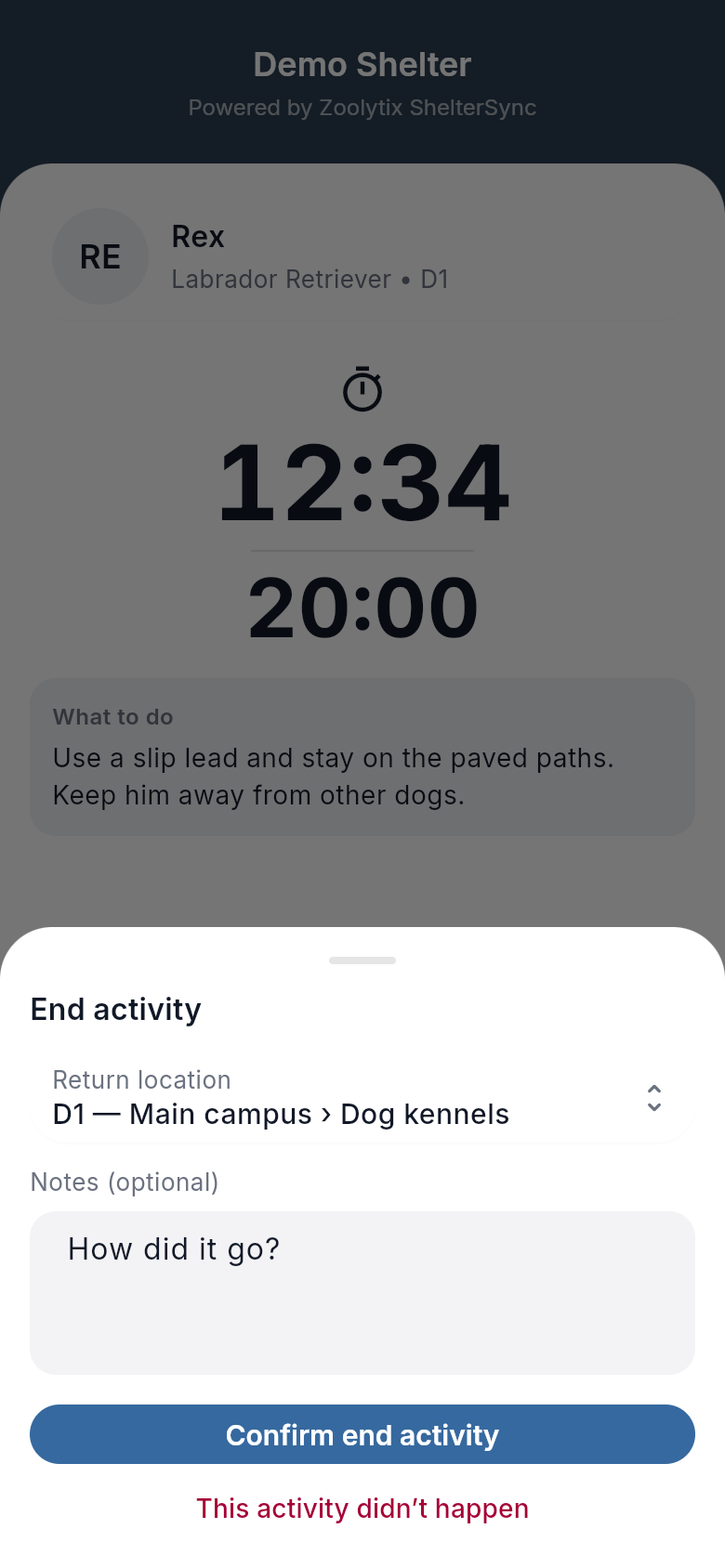
If the activity never took place, for example you started it by mistake, tap This activity didn’t happen instead, then Didn’t happen to confirm. It is recorded as not having happened, and a survey waiting on it is cancelled. You can't undo this from your phone.
9. Fill in the survey, if there is one
Depends on your shelter: a survey opens only when your shelter has one waiting on the activity you just ended. If there isn't one, the app goes back to Home.
- Answer the questions and tap Submit survey. If there is more than one survey, the screen shows which one you are on, for example Survey 1 of 2.
- When you have sent the last one, the app says Survey submitted! Tap Done to go back to Home.
The app doesn't make you finish a survey straight away. If you leave one, it waits for you: Home shows, for example, 1 pending survey, which you can tap to fill it in, and Profile has Pending surveys. If you have started answering it, leaving first asks Discard your changes?: Keep editing stays on the survey, and Discard drops your answers, though the survey still waits.
What depends on your shelter
Your shelter's setup decides whether you see these:
| What | Where | When you see it |
|---|---|---|
| A code at sign-in, or MFA setup required | Step 2 | Your shelter asks your role for a second step at sign-in. |
| Approval request sent | Step 3 | Your shelter requires your role's new phones to be approved. |
| What to do | Step 5 | Your shelter wrote a note for the activity. |
| Where is (name) going? | Step 5 | Your shelter set the activity up as one that takes the animal out of where it lives, or can. |
| Drop-off · no timer and Log drop-off | Step 5 | Your shelter made the activity a drop-off. See Drop-offs on the phone. |
| The cleared-handler pop-up | Step 6 | The animal's handling is set to Experienced only or Staff only. See handling confirmation. |
| Before you start | Step 6 | Your shelter wrote steps for the activity, or for this animal. See what volunteers see. |
| A target under the clock | Step 7 | Your shelter set a target time for the activity, or for the animal. |
| The survey | Step 9 | Your shelter attached a survey to the activity. With none, the End activity sheet has a Notes (optional) box instead. |
Something not working, or not clear? Send feedback from the phone.