Appearance
Enrichment plans
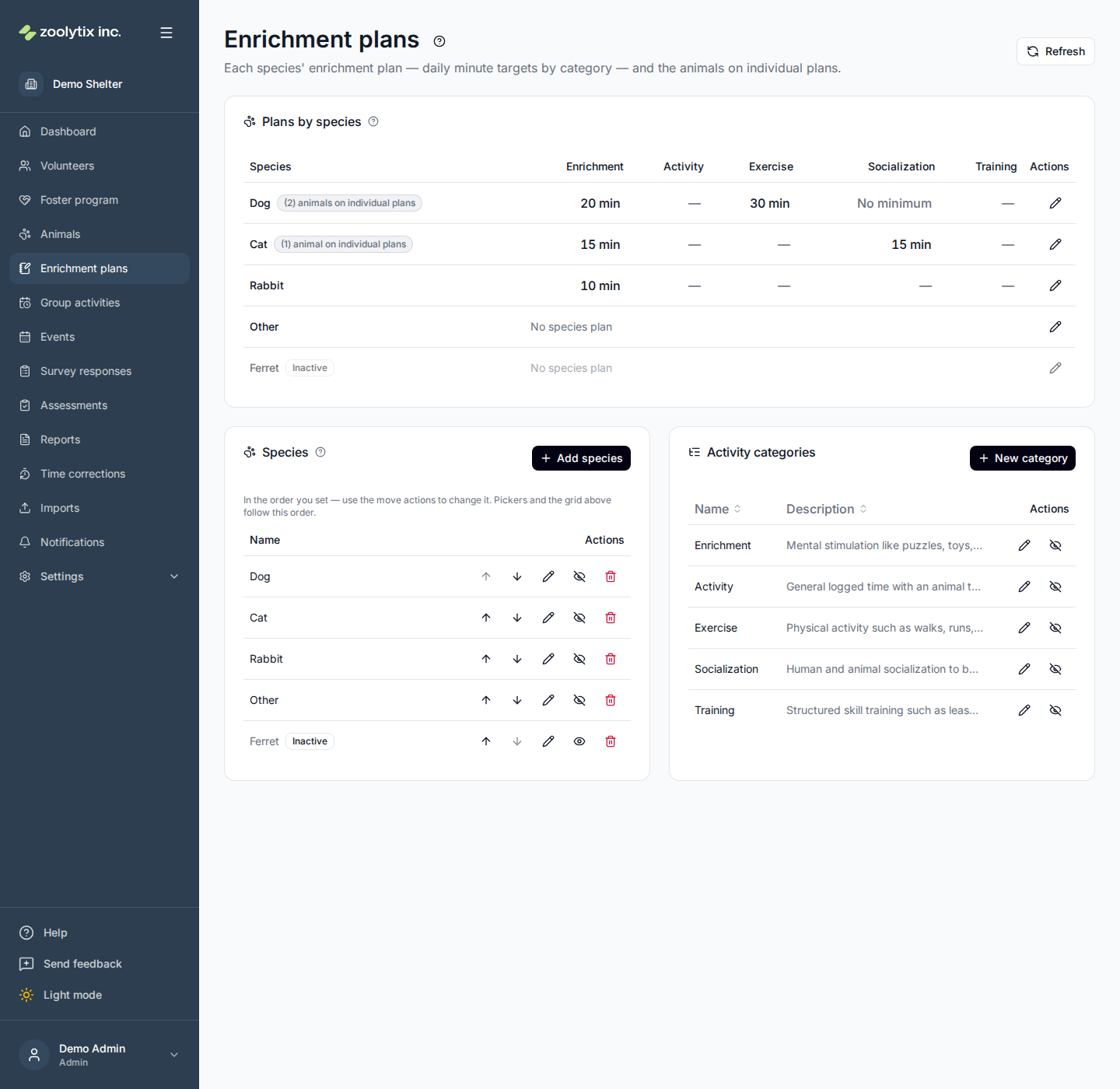
Enrichment plans are how your shelter says what its animals should get each day. The page shows one grid: a row per species, a column per activity category, and in each cell the daily minute target — that row is the species' enrichment plan. Animals with their own per-animal targets appear as a count of individual plans next to their species.
Who can use this page: everyone with animal access can view it. Changing targets needs the activity-goals permission; managing the species and category lists is an administrator action.
Reading the grid
- Each value is a daily target — minutes per day for that species in that category. A dash means the category is not on that species' plan at all.
- No minimum is a third thing: the category is on the plan and is tracked — minutes logged against it show on each animal's Plan tab — but it sets no daily minimum, so it never counts as met or missed: not on the dashboard's unmet-goals card or donuts, not in reports. Use it for a kind of care you want recorded without inventing a number for it. It does not change which activities volunteers can choose when they check an animal out; that is decided by which species each activity is offered for, whether or not the category is on the plan.
- No species plan is said outright, in place of a row of dashes, when a species has nothing set in any category. A row of dashes would say the same thing only by absence, and it reads the same as a plan that happens to leave the categories on screen out — so the one state that most needs saying is said. The row's edit action opens the wizard to set the plan up, the same action every other row carries.
- Hover (or focus) a value to see exactly which activities count toward it. The list is your organization's real configured activities for that species — so what volunteers can pick is what the target measures.
- A grayed-out row is a deactivated species: it is no longer offered anywhere a species is picked for something new, but animals that already have it keep it, so its row stays here rather than vanishing.
Individual plans
An individual plan is one animal's own plan, added on top of its species' enrichment plan — usually for a medical or behavioral reason ("shorter sessions while she recovers"). It can add minutes to a category, take minutes off, add activities that animal should get, and carry step-by-step instructions, notes, and a review date.
It is a difference, not a replacement. If the Dog plan says 120 minutes of exercise and Buddy's individual plan adds 30, Buddy's target is 150. Change the Dog plan to 100 and Buddy's target becomes 130 the same moment — you never have to revisit the animals one by one. A reduction works the same way: 15 minutes off a 120-minute plan is a 105-minute target, and a reduction as big as the plan itself, or bigger, leaves the animal with no daily minimum in that category — it is still tracked, and never counted as met or missed.
When a species has animals on individual plans, its row shows a count like "(2) animals on individual plans". Click it to see the animals by name, each with what its plan changes ("+15 enrichment"); each name opens that animal's Plan tab, where the plan itself lives.
Changing a plan
The grid is deliberately read-only — you can't edit numbers in place. Use the edit action at the right edge of a row to open that species in the plan setup wizard, adjust the plan there, review what changes, and apply — the grid updates as soon as you do.
Managing species
Administrators manage the species list right on this page:
Add — choose Add species at the top of the Species card, type the name in the dialog that opens, and choose Add species. The species is saved with the capitalisation you type, so "Guinea Pig" stays "Guinea Pig" everywhere it appears. Two species cannot differ only by capitalisation: if "Dog" is on the list, adding "dog" is refused rather than quietly creating a second entry that looks the same. (Species added before ShelterSync started keeping capitalisation are left exactly as they were; rename one to give it the capitalisation you want.)
Rename — the pencil icon. The new name keeps the capitalisation you type, and re-capitalising a species you already have — "guinea pig" to "Guinea Pig" — is a rename like any other. Renaming updates the species everywhere it appears: the species list, every picker, every animal recorded under it, and everything set up against that species — activity scoping, which assessment templates apply to it, and show-when conditions on survey questions. Those keep pointing at the species because each of them records which species it means, not what the species is called. (The exceptions are both rules hand-written in the builder's Advanced mode: one that tests the species name as text rather than picking a species, and one that lists several species by name where at least one of them is a name this shelter has no species for. Those still go by name, so check them after a rename. You do not have to hunt for them — they are listed by name in the update's own record every time ShelterSync starts, and the builder will not let you write a new one.)
Reorder — the arrows set the order species appear in, here and in pickers. This list has no column sorting for that reason: the order you see is the order you set, and it is the one the grid's rows and every species picker use.
Deactivate — the eye icon hides a species from new selection: wherever you would pick a species for something new, it stops being offered. Nothing that already uses it changes — animals of that species keep it, and a plan, an activity or an assessment template already set for it keeps working. Where something you have already saved names a deactivated species — an animal, an activity’s scope, a template’s targeting, a show-when rule — that picker still offers it, marked inactive, so you can see it and change it rather than finding it gone. A deactivated species also still appears in list filters, so its existing animals stay findable. Reactivate it at any time. A species whose plan holds draft activities — added in the plan setup wizard and not yet applied — cannot be deactivated until you apply its plan or discard them: the wizard cannot open a deactivated species, so they could be neither.
Delete — only for a species nothing has ever used. While an animal, its enrichment plan, an activity offered for it, a draft activity in its plan, or an assessment template applied to it still points at it, the delete is refused, and the message names what is holding it so you know where to look. For anything with history, deactivate instead.
One thing a delete cannot check
A show-when or validation rule written against a species in the survey builder holds that species inside the rule itself, not as a link ShelterSync can follow. Deleting a species nothing else uses therefore succeeds, and the rule is left naming a species that is gone — so from then on the question it controls is shown or hidden on the wrong animals, and nobody is told. Which way it goes depends on how the rule is written: one that says the animal is that species stops showing the question at all, while one that says the animal is not that species starts showing it on every animal. So a "needs special handling — non-canine" question can begin appearing on every dog. If you have written rules against a species, open those templates before deleting it.
Managing activity categories
Categories are the grid's columns. Administrators can add a category, rename it, give it a description or icon, and deactivate one that's no longer used — deactivated categories leave the grid but everything already recorded against them is kept.
The categories list opens in the order the grid takes its columns from. It can be longer than the grid is wide, because it also holds any deactivated categories, which have no column — those sit in the same sequence among the rest. Click the Name or Description heading to sort it: once for A–Z, again for Z–A. Any category you have left without a description sorts to the bottom in both directions. Sorting changes only how this list is shown to you — never the grid's columns, and never the order itself. Reload the page to see the list back in its original order.
This page is the home for species and activity categories; the specific activities inside each category are edited in the plan setup wizard.
Fields explained
| Field | What it means |
|---|---|
| Daily target | The minutes of activity this species should get per day in each category — its enrichment plan. Hover or focus a value to see which activities count toward it. No minimum means the category is on the plan and tracked — minutes logged against it still show on the animal's Plan tab — but it sets no daily minimum, so it never counts as met or missed anywhere: not on the dashboard, not in reports. A dash means the category is not on the plan at all. Where a species has no plan at all, the row says No species plan in place of a row of dashes — nothing has been set for it in any category, which is not the same as a plan that happens to leave these categories out. Use the row's edit action to set one up. None of these changes which activities volunteers can choose; that is decided by which species each activity is offered for. |
| Individual plans | An individual plan is added on top of the species' enrichment plan for one animal — extra minutes in a category, fewer minutes, extra activities, and how to handle that animal. It is a difference, not a replacement: change the species plan and every animal on an individual plan moves with it. The count links to the animals; open one to see or change its plan on its Plan tab. |
| Species name | Type it the way you want to read it — the capitalisation you use is the capitalisation ShelterSync keeps and shows, here and everywhere the species appears. Two species cannot differ only by capitalisation: if "Dog" is already on the list, adding "dog" is refused rather than creating a second entry that looks the same. Renaming works the same way, and re-capitalising a species you already have — "guinea pig" to "Guinea Pig" — is allowed and updates the animals of that species too. Species added before this changed are left as they were; rename one to give it the capitalisation you want. |
| Deactivate a species | Deactivating hides a species from new selection: wherever you would pick a species for something new, it stops being offered. Nothing that already uses it changes — animals of that species keep displaying, and a plan, an activity or an assessment template already set for it keeps working. Where something you have already saved names a deactivated species, its picker still offers that one, marked inactive, so you can see it and change it rather than finding it gone. Reactivate it at any time. A species whose plan holds draft activities — added in the plan setup wizard and not yet applied — cannot be deactivated until those drafts are applied or discarded, because the wizard cannot open a deactivated species to finish them. Delete is only for a species nothing has ever used: while an animal, its enrichment plan, an activity offered for it, a draft activity in its plan, or an assessment template applied to it still points at it, the delete is refused and the message names what is holding it. Deactivate that one instead. One thing a delete cannot check: a show-when or validation rule you wrote against a species in the survey builder holds that species inside the rule itself, so deleting a species nothing else uses leaves the rule naming a species that is gone — and the question it controls is shown or hidden on the wrong animals from then on, with nothing said about it. A rule that says the animal IS that species stops showing its question at all; one that says the animal IS NOT that species starts showing it on every animal. If you have written rules against a species, open them before deleting it. |
| Category icon | An optional icon name shown next to the category in some lists. Leave it blank and standard categories keep their familiar default icon. |