Appearance
Feedback
When anyone using ShelterSync clicks Send feedback in the web app's sidebar, or taps it on their profile in the phone app (Send feedback from the phone), their report lands here. This page is where the Zoolytix team reads and triages that feedback from across every organization.
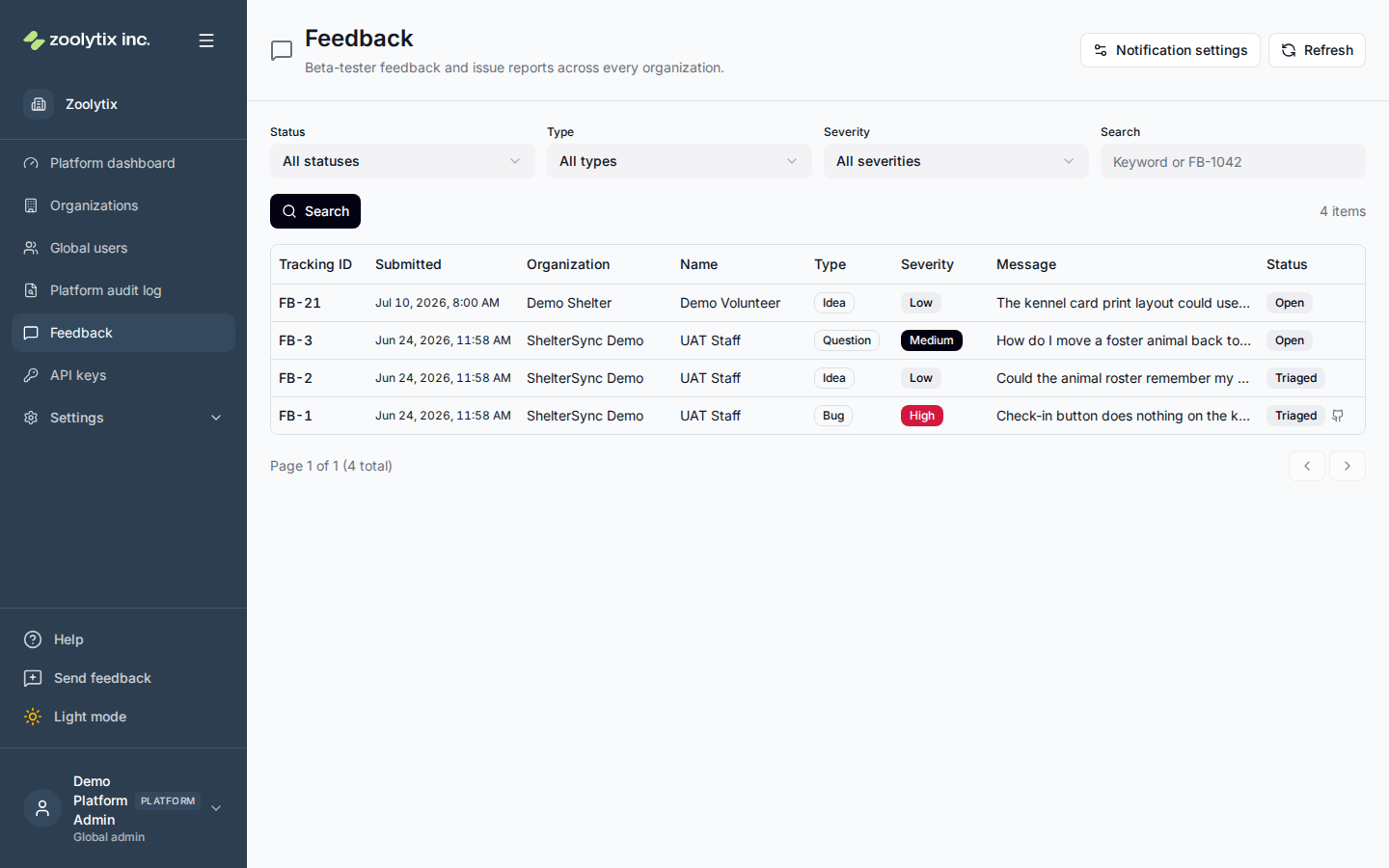
What you can do here
- Find an item by its tracking ID (FB-1042)
- Open an item from its notification email
- Filter feedback by status, type, or severity
- Show feedback from test organizations, such as the store review organization
- Open an item and change its status
- Link the GitHub issue you filed from an item
- Edit the notification recipient list
Tracking IDs
Every feedback item gets a short, stable tracking ID — for example FB-1042 — assigned the moment it is submitted. The submitter sees it in the confirmation message when they send feedback, and it appears in the first column of the list and at the top of the detail view here. Quote it whenever you discuss an item ("can you look at FB-1042?"), and paste it into the search box to jump straight to that item.
Triaging feedback
Each item shows its tracking ID, the type (bug, idea, or question), severity, the message, which organization it came from, and who sent it — the Name column shows the submitter's display name (or their email when no name is set). Filter by status, type, or severity to focus, then open an item to read the full detail — including the submitter's email address for follow-up, any screenshot the reporter attached, and the page they were on when they sent it.
Move an item through its status as you work it: open → triaged → resolved (or won't fix). Status changes are recorded in the audit log of both the reporting organization and the platform.
Two years after an item is resolved or marked won't fix, its message, page, browser, request id and screenshot are removed, as the privacy policy says. The message is replaced with a short note. The triage record stays, with who sent it. An item that is still open or triaged is kept.
Feedback from test organizations
Feedback from a test organization is left out of the list by default, so it isn't worked as though a shelter had sent it. A test organization is one marked seeded, such as the organization Apple and Google reviewers sign in to when they review a new phone app version. Tick Include test organizations and select Search to list it with everything else.
Telling a phone report from a web one
A report sent from the phone app says so in three fields of its detail:
- Page is a phone screen rather than a web address:
app://profile/feedbackwhen Send feedback was opened from the Profile tab, orapp://pending-approval/feedbackwhen it was opened from the waiting-for-approval screen by someone whose phone their shelter had not approved yet (Decision 118). It says nothing about where the problem was; the phone's manual page asks the sender to name the screen in the message. The page is the phone's to fill in; the server keeps its own record. Every report's entry in the Platform audit log (record kind feedback, the report's id) carries sessionRestrictedReason: device_pending when the sender's phone was still waiting for approval, and null when the sender had full access. - User agent is
ShelterSync-Mobile/followed by the app version and, in brackets,iosorandroid— for exampleShelterSync-Mobile/0.36.0+54 (android). - App version is the phone app's version, such as
0.36.0+54.
If the phone could not read its version or platform, that part reads unknown. A phone report has no Request id (the web app attaches the most recent server request ID it recorded; the phone attaches none) and no screenshot (the phone app cannot attach one).
Linking the GitHub issue
When you file a GitHub issue from a feedback item, record it back on the item: open the detail, type the issue number into Linked GitHub issue, and save (typically alongside moving the item to triaged). The list then shows a small GitHub mark on that item so you can see at a glance what has already been filed, and the detail shows an Open issue link straight to GitHub. Leave the field blank to unlink. A given GitHub issue can be linked to only one feedback item — linking one that is already attached elsewhere is rejected. Linking is recorded in the audit log.
Notification recipients
Use the notification settings to choose who gets an email each time feedback is submitted. It's a single list for the whole platform — keep it to the people who actually triage.
Each email names the item's tracking ID in its subject (for example [ShelterSync feedback] FB-1042 bug (medium) — Happy Tails) and at the top of the message, with an Open FB-1042 in ShelterSync link. The link opens the item's detail on this page, including an item from a test organization that the list leaves out. Sign in to the Zoolytix organization first: from the sign-in page, ShelterSync does not yet take you on to the item.
Fields explained
| Field | What it means |
|---|---|
| Tracking ID | A stable, human-friendly reference (FB-1042) assigned when feedback is submitted. It is shown to the submitter on send and used to refer to the item in support and triage. Paste it into search to jump straight to the item. |
| Name (submitter) | Who sent the feedback. The list's Name column shows the submitter's display name (or their email when no name is set), so you can see who reported an item without opening it. The detail view also shows the submitter's email address for follow-up. |
| Include test organizations | Feedback from test organizations — the store review organization and other organizations marked seeded — is left out of the list unless this box is ticked before you search. A link in a notification email opens its item whether or not the box is ticked. |
| Linked GitHub issue | The GitHub issue filed from this feedback. Enter the issue number to link it (a small GitHub mark then shows on the item in the list, and an Open issue link appears here); leave it blank to unlink. An issue can be linked to only one feedback item. |