Appearance
Plan setup wizard
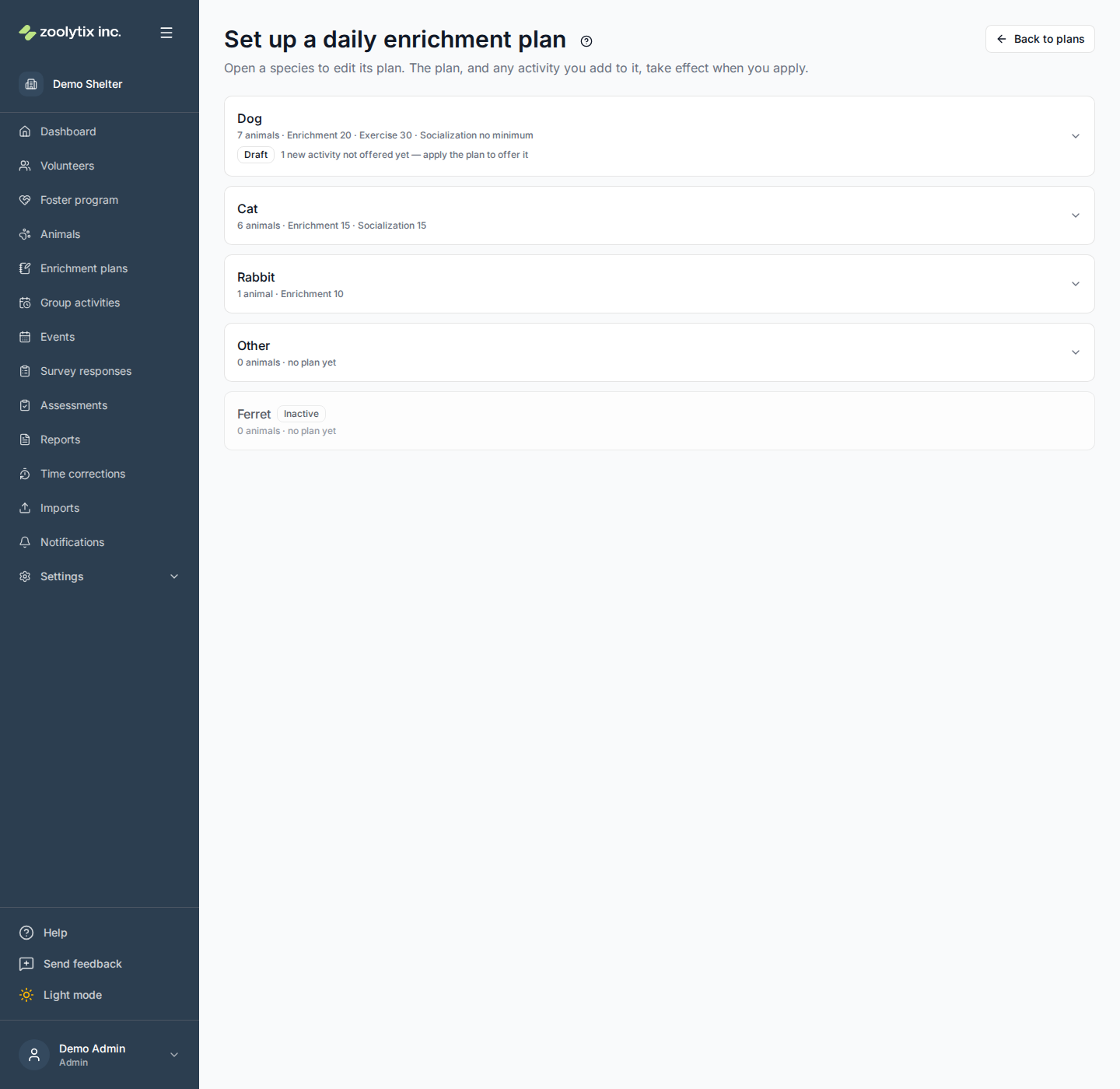
The plan setup wizard is where a species' enrichment plan is edited. Every species is listed; open one and it expands into three short steps. The plan's categories and minutes change for the animals when you press Apply on the last step, and so does anything new you added: an activity added here is a draft that volunteers see only once the plan is applied. A change to an activity volunteers can already see takes effect as soon as you save it.
Who can use this page: the activity-goals permission is needed to edit plans; editing the activities inside a category is an administrator action.
The three steps
- What they need — tick the kinds of care (activity categories) this species should get every day. Each card shows the activities volunteers can actually log for this species; open a card's Edit activities to add a new activity, change one, disable one, or reorder them.
- How much — set the daily minutes for each category, with − / + buttons in five-minute steps or by typing. A running total and a proportion bar show what the species' whole day looks like. If a value is below 10 or above 120 minutes, the wizard asks you to confirm it when you leave the field — unusual targets are allowed, the check only catches typos. Enter 0 for a category you want on the plan with no daily minimum: it stays on the plan and is tracked, but it never counts as met or missed. Because 0 is below 10 the wizard asks you to confirm it too; Let me change it empties the field again. A category you have ticked but left blank cannot be applied — the wizard names it under the buttons and waits for a number, so a blank is never quietly treated as a 0.
- Review and apply — a summary of the plan, what changes for the animals, the new activities that applying will offer to volunteers (if you added any), and a look back at yesterday: had this plan been in place, how many animals would have met every target, some, or none — based on what volunteers actually logged. A category with no daily minimum is listed as such, adds nothing to the day's total, and is left out of the look-back, because nobody can meet or miss it. An animal whose individual plan covers a category in this plan is counted, for that category, at the number you set here plus its difference; if that lands on 0, it is listed with the animal but, like any category with no daily minimum, is not part of the look-back. When it looks right, Apply.
Editing the activities in a category
Open a category card's Edit activities on the first step:
- Add an activity with a name, its typical minutes (required), an optional max, a short what to do text volunteers read on their phone (see What to do below), whether it is a drop-off, where it happens, suggested locations, any surveys to ask for afterwards, and which species it is offered for. It is saved as a draft: volunteers see it once you apply the plan.
- Edit an activity to change any of those. The activity keeps its identity, so nothing already logged changes — and the surveys attached to it keep their own settings. Editing an activity volunteers can already see changes it for them as soon as you save.
- Disable an activity to stop offering it without losing history — it drops off the list volunteers pick from in the phone app, and everything already recorded against it stays.
- Discard a draft you no longer want. A draft has never been offered, so there is no history to keep: discarding deletes it.
- Reorder activities with the arrows to control the order volunteers see.
The same add form is also reachable from an animal's profile — Add activity type in its Start activity dialog — for the moment you find a type missing while starting one. An activity added there is not a draft: it is offered to volunteers as soon as you save it, and it appears here too.
New activities are drafts
An activity you add in the wizard belongs to the plan you are editing, and it reaches volunteers only when you apply that plan — the same as the plan's categories and minutes. Until then it is a draft:
- Its row says Draft — Volunteers can't see this until you apply the plan, and the category card lists it under Draft, not offered yet instead of Includes.
- Volunteers cannot see or start it: not in the phone app, and not in the web app's own Start activity dialog.
- You can still edit it, write its protocol, reorder it, or Discard it. Discarding deletes the activity with its protocol and its links to surveys; the surveys themselves are not touched.
- Which surveys follow a draft is set here, on the activity. The survey editor does not list a draft among a survey's activities until the plan is applied, and saving a survey there leaves a draft's links as they are — unless the survey is saved as something other than an activity survey, such as an assessment, which removes every link it has to activities, drafts included, because only an activity survey is asked for after an activity.
- It is saved for everyone, not just on your device: another administrator opening the same plan sees it, and the species' row in the list says how many new activities are waiting, even when the plan is closed. That is how you find drafts again after leaving the wizard part-way through.
- The Review and apply step lists every draft under New activities. Apply offers them to volunteers along with the plan. If someone discarded or applied one of them while you were reviewing, the apply is refused and nothing changes; open the review again to see what is there now.
- A species whose plan holds drafts cannot be deactivated on the Enrichment plans page until they are applied or discarded.
Changes to an activity volunteers can already see are not drafts. An edit, Disable or Enable, a new order, or a protocol change takes effect as soon as you save it.
How the phone lists them
When a volunteer taps Start activity on their phone, the activities offered for that animal are listed in one of two ways:
- Six activities or fewer, or all of them in one category — one list, and a tap chooses one.
- More than six, in two or more categories — the screen opens to your categories, each saying how many activities it holds. Tapping a category opens its activities under it and closes the one that was open; tapping an activity chooses it. If the volunteer then closes that category, the activity stays chosen and the category says which one it is.
Categories are listed in the order the server sorts their names — alphabetical as the database compares text, so capital letters, accents and punctuation can place a name differently from a dictionary — and the activities in each one in the order you set with the arrows. Start Activity stays at the bottom of the screen in both layouts. The category names are what a volunteer reads first when there are many activities, so short, familiar names help. The web app's own Start activity dialog on an animal's profile groups them by the same rule, with Start activity at the bottom of the dialog. Its headings show category names the way the web app shows them everywhere else, so a name saved in lower case can read differently there — k9-games on the phone is K9 games in the web app.
Which species an activity is offered for
Every activity is one of two things, and its row in the list says which: All species — offered for every species you have, including any you add later — or Rabbit only, Dog and Cat only, and so on.
In the activity's form, Offered for is that same either/or:
- All species offers it everywhere. This is what a general activity like Enrichment should be.
- Only certain species offers it just for the species you tick, and for no others. You have to choose this before you can tick anything, so narrowing an activity is never something that happens by accident while you are confirming that it applies to one particular species.
If the change would stop offering the activity for a species it is offered for today, the form says so — naming those species — before you save. Choosing Only certain species and ticking nothing is refused rather than silently meaning "all".
Ticking every species on the list is not the same as All species, and the form says so too. An activity offered for All species is offered for a species you add next month without anyone touching it; an activity offered for Only certain species with every box ticked is not — the new species has to be ticked here before the activity is offered for it. So when you change an all-species activity to Only certain species and tick everything on the list, the form points that out before you save, even though no species on the list loses the activity today. A deactivated species is not on the list; if the same change stops offering the activity for one, the same line says so too, naming it.
A new activity starts as Only certain species, ticked for the species whose plan you are editing. Switch it to All species if it suits every animal. Scoping only changes what is offered from now on; activities already logged are untouched.
Where an activity happens
Every activity says where it happens relative to the animal's own kennel, condo or other housing, and its row in the list says which:
- In housing — it happens where the animal lives: a puzzle feeder in the kennel, a sit with a cat in its condo. When a volunteer starts it, their phone asks nothing about where.
- Out of housing — it takes the animal somewhere else, such as a walk. The volunteer's phone app asks where the animal is being taken, and the volunteer answers before the activity starts. Leaving it where it is is one of the answers, for an animal that is already out.
- Either — it can go either way. The phone app asks the same question, with leaving the animal where it is already chosen, so a volunteer who is not moving it just carries on.
On the phone the question sits at the bottom of the Start activity screen, just above Start Activity, whichever activity is chosen and however long the list. Tapping it opens the list of places: "Stays in" the animal's current location first, then the places grouped under the building or area they are in, in the same order as your location tree in Sites & locations. Typing finds a place by its own name or by the name of any building or area it is in — a building's name lists every place inside it. When the volunteer ends the activity, where the animal went back to is chosen from the same kind of list.
The place the volunteer picks becomes the animal's location until the activity ends; when they end it, they say where the animal went back to, as they always have. An activity ended in the web app instead, from the dashboard's Live activities or the animal's profile, puts the animal back where it was when the activity started, unless someone has moved it since (a transfer while it was out, say), in which case it stays where it was moved to. An administrator closing someone else's activity from the dashboard sees that place filled in and can pick another. An animal that left the shelter while it was out, adopted in ShelterLuv for example, is not put back, however the activity ends: it stays where it is, unavailable. The phone does not ask for an animal in a foster home, and the web app's own Start activity dialog does not ask at all — an activity started there stays where the animal is.
Which places the phone offers
On an updated phone the list is your shelter's locations marked Activities — the places animals are taken to, such as a yard (Organization settings, Sites & locations). A kennel marked only Housing is not on it; the phone offers housing when the activity ends, as where the animal goes back to. Until you mark a place Activities, an Out of housing activity there offers only "Stays in" the animal's current location. A phone still on version 0.37.0 offers every location marked Housing or Activities, both when the animal goes out and when it comes back.
A new activity starts as Either, and so does every activity that existed before this setting did. Change the ones that are really one or the other. A drop-off is always In housing.
Drop-off activities
Some enrichment is handed out rather than run: a frozen treat or a stuffed Kong goes into the kennel and the animal is left alone with it. Timing that would mean starting and ending a session nobody is watching. Tick Drop-off on an activity like that.
A drop-off is recorded as done the moment it is logged:
- There is no timer and nothing to end, and the animal never shows as In activity. Nothing moves: the animal stays where it is.
- It never asks a survey. Surveys attached to the activity stay attached but are not asked while it is a drop-off, and the form says so.
- It is always In housing. While Drop-off is ticked, the other two choices under Where it happens cannot be picked; untick it to choose one. Untick it before you save and the choice the activity had before you ticked it comes back.
How a drop-off counts:
- Toward the animal's plan: yes. Each drop-off counts the activity's Typical minutes toward the animal's daily target in its category. The number is taken when the drop-off is logged, so changing Typical later leaves drop-offs already logged as they were. A Typical of 0 counts nothing.
- As anyone's time: no. It adds no volunteer time, does not count on the leaderboard, and adds nothing to the activity minutes in reports or on the dashboard's Activity minutes today. Reports still count it as an activity.
- On the Missed list: still listed. Nobody spent time with the animal, so an animal whose only activity was a drop-off is still on the dashboard's Animals being missed, even though the drop-off counts toward its goal.
To log one for a single animal, open the animal's profile and use Start activity: a drop-off is listed with Drop-off beside its name. Its row in the list here says Drop-off too. Disable and Enable leave the setting as it is; untick Drop-off to make the activity timed again, and drop-offs already logged stay as they were.
Suggested locations
Suggested locations are the places an activity usually happens — the yard a reactive dog is walked in, say. Only locations marked Activities are offered: the places animals are taken to (Organization settings, Sites & locations). A suggestion never restricts where the activity can be logged.
If the place you want isn't on the list, add it without leaving the form:
- Under Suggested locations, choose Add a location.
- Choose its Parent — where it sits in your location tree — give it a Name, and check its Kind.
- Activities is already ticked under What it's for. Tick Housing as well if animals also live there, as in a cattery.
- Choose Add.
The place is saved to your locations straight away: it appears in Sites & locations under the parent you chose, and cancelling the activity does not remove it. If it is marked Activities, it is chosen as a suggestion for this activity, and everything else you had entered in the form stays as it was. If you unticked Activities, the place is still created but not chosen, because only a place marked Activities can be a suggested location. If ShelterSync refuses the place — a location with that name already exists under the same parent, say — the dialog says why and keeps what you typed.
Timezone, address and notes are not asked for here; add them in Sites & locations if the place needs them. The Add activity type dialog on an animal's profile uses this same form, so Add a location is there too.
Who sees it: anyone whose role can manage locations — among the standard roles, administrators. Anyone else sees the list as usual, with a line under it saying who can add a location.
Protocols
A protocol is the step-by-step instructions for running one activity — how to set up a puzzle feeder, how to leash a dog up. It is where the shelter's handling binder goes: written down in one place, so it stops being a folder only one person can hold at a time.
Each activity in the Edit activities list carries its own protocol, shown as a Protocol line under the activity's name. Open it to read the steps; open it and choose Write a protocol (or Edit protocol) to change them. Writing and reading protocols both happen here in the wizard, so both need the administrator permissions the wizard itself needs. Volunteers read the same steps on their phone, just before they start the activity — see What volunteers see below.
Inside the editor:
- Add a step for each thing the volunteer does, in the order they do it. Every step needs a short name; the note underneath is optional and is for the detail that makes the step easier to get right.
- Photo attaches one picture to a step. The picture follows the same size and file-type limits as the rest of the shelter's photos. Unlike the step text, a picture is uploaded the moment you choose it — Cancel leaves it uploaded, so use Remove photo if you change your mind.
- Move up / move down puts the steps in the right order. Remove step takes one out. The step text and the order are not saved until you press Save protocol, so a reordering is applied all at once.
- Volunteers must tick this step marks a step nobody can skip past. Leave it unticked for ordinary guidance. Use it for the one or two steps that matter most — a protocol where every step must be ticked is a protocol people learn to tick without reading.
- Protocol heading is optional. Leave it blank and the activity's own name is used.
- Retire protocol marks a protocol out of use without deleting it — the steps are kept, a Retired pill appears beside the protocol's step count, and saving it again brings it back into use and removes the pill.
Protocols are guidance, not a checklist to be signed off. ShelterSync does not record who read a protocol or which steps they ticked — not the volunteer's name, not the time, not anything. A must-tick step decides what the volunteer's phone lets them do next, and that is all it does; afterwards there is no way to ask whether a step was ticked, and it is not evidence that anything was done. If you need something a volunteer affirms and the shelter can look up later, that is the handling confirmation on a restricted animal, which is a different thing and is recorded.
What volunteers see
When a volunteer starts this activity on their phone, the steps come up first, under Before you start — the activity's steps followed by anything written for that particular animal.
- The steps are shown in the order you wrote them, numbered as you numbered them. A must-tick step does not jump to the top.
- Skip puts the guidance away so they can get on with it.
- A step you marked must tick stays on screen when they skip — keeping its own number, so a step you wrote fourth still reads "4." even when it is the only one showing — and Start Activity stays unavailable until they tick it.
- After the first time that phone has read this activity's protocol, the guidance opens tucked away behind a "show the steps" link, so a volunteer who already knows the routine is not re-reading it every day. Must-tick steps are still shown, and still have to be ticked.
- When a protocol is only must-tick steps, on a phone that has read it before, the button under Start Activity reads Cancel. It closes the steps without starting the activity, whatever has been ticked.
One animal may need something different from the rest. Those steps are written on the animal's own Plan tab, under Handling protocols, and are added to the activity's steps rather than replacing them — a volunteer reading the protocol for that animal sees the activity's steps followed by the animal's.
What to do
What to do is the activity's short description — what this activity is and how to run it, in a sentence or two. On a volunteer's phone it appears in two places:
- On the Start activity screen, under the activity once they choose it — before they press Start Activity, so tapping through the list is how they read what each activity involves. Only the chosen activity's text is open, so a long list of activities stays a list.
- On the timer while the activity runs, including when they come back to a running activity from the home screen, the calendar or the animal, or open it on another phone.
An activity with no What to do shows nothing extra in either place. The text appears as you wrote it, line breaks included. It is not shown when a foster logs a past session, or in the web app's own Start activity dialog.
A protocol is not the same as What to do. What to do is the short "what this is". The protocol is the longer, ordered "how", which comes up when the volunteer starts the activity. Keeping handling steps out of What to do keeps it quick to read on the phone.
Drafts
The wizard saves your in-progress plan — its categories and their minutes — on your device as you work; the Draft saved indicator shows when. Close the page or reload and the draft is waiting when you come back; it is applied to the animals only when you press Apply. Discard draft throws the draft away and returns to the live plan.
New activities you added are kept separately, on the server, so they are not on your device only and Discard draft leaves them alone — see New activities are drafts. Discard those one at a time.
Animals with individual plans
An individual plan is a difference added on top of the species plan, so applying a new species plan moves those animals too: an animal at "+30 exercise" follows the number you set here. The review step names the animals whose individual plan covers one of these categories and shows where each of their targets lands — the number you set here plus their difference, so "Exercise 30 → 60 min (+30)". The yesterday simulation counts them at those moved targets, the same way the animal's own Plan tab will read once you apply. A difference that takes a target below zero stops at zero, and a plan that has been ended is not counted.
Fields explained
| Field | What it means |
|---|---|
| Category | Which part of the daily plan this activity counts toward — for example Exercise or Enrichment. Minutes logged against it go to that category's target. In the wizard the category is the card you are in; the Add activity type dialog on an animal's page asks for it. |
| Typical | How long this activity usually takes, in minutes. For an ordinary, timed activity it is a guide volunteers see when they log the activity: what counts toward the category's daily target is the time the activity actually took, not this number. For a drop-off this number is what counts: each drop-off counts this many minutes toward the animal's daily target in the category, taken from this field when the drop-off is logged, so changing it later leaves drop-offs already logged as they were. A drop-off with 0 counts nothing toward the target. |
| Max | An optional upper bound in minutes. Going over it does not block anything — it is used to highlight unusually long sessions. |
| What to do | Optional guidance for volunteers — one or two sentences on how to run this activity. Their phone shows it under the activity when they choose it on the Start activity screen, before anything has started, and again on the timer while the activity runs. It is not shown when a foster logs a past session, or in the web app's Start activity dialog. |
| Where it happens | Whether the activity happens in the animal's own kennel, condo or other housing, takes it somewhere else, or can go either way. It changes what the volunteer's phone app asks when they start the activity; the Start activity dialog here in the web app asks nothing either way. In housing: the phone asks nothing about where. Out of housing: the phone asks where the animal is being taken, and the volunteer answers before it starts — leaving it where it is is one of the answers. Either: the phone asks the same question with leaving it where it is already chosen, so a volunteer who is not moving the animal just carries on. The place they pick becomes the animal's location until the activity ends, when they say where it went back to. When an activity is ended in the web app instead, the animal goes back where it was when the activity started, unless someone has moved it since or whoever ends it picks another place. An animal that left the shelter while it was out, adopted in ShelterLuv for example, is not put back, however the activity ends: it stays where it is, unavailable. On an updated phone app the places offered are your locations marked Activities, such as a yard (Organization settings, Sites & locations), and until you mark one an Out of housing activity can only stay where it is; a phone still on version 0.37.0 offers every location marked Housing or Activities. The phone does not ask for an animal in a foster home. A new activity starts as Either, and so does every activity that existed before this setting did; change the ones that are really one or the other. An activity marked Drop-off is always In housing, and the other two cannot be chosen while it is. |
| Drop-off | For something left with the animal in its housing, like a frozen treat or a Kong, where nobody stays to watch. A drop-off is recorded as done the moment it is logged: there is no timer and nothing to end, it never asks a survey, it moves nothing, and the animal never shows as in an activity. It is always In housing. Each drop-off counts the activity's Typical minutes toward the animal's daily target in its category, and toward nothing else: it adds no volunteer time, it does not count on the leaderboard, and the activity minutes in reports and on the dashboard leave it out. An animal whose only activity was a drop-off is still listed as being missed, because nobody spent time with it. Anyone who can start activities can log a drop-off for one animal from the Start activity dialog on its page here in the web app. Untick it to make the activity timed again; drop-offs already logged stay as they were. |
| Protocol | The step-by-step handling instructions for this activity — how to run it, in order. Here in the wizard you open it when you want it, and nothing is recorded when it is read. On a volunteer's phone it works the other way round: the steps come up on their own when they start the activity, and they can skip past them — unless you mark a step must-tick. This is separate from What to do, the short description a volunteer's phone shows when they choose the activity and on its timer. |
| Volunteers must tick this step | Marks a step the volunteer cannot skip past. Their phone shows the protocol before they start the activity, in the order you wrote it; skipping hides the rest of the steps, but a must-tick step stays on screen — keeping its own number — and Start stays unavailable until they tick it. The tick is not recorded — afterwards there is no way to ask whether a step was ticked, and this is not a sign-off. Use it for the one or two steps that matter most, not for every step. |
| Protocol heading | An optional heading for the steps, like Puzzle feeder. Leave it blank and the activity's own name is used. |
| Suggested locations | Places this activity usually happens. Only locations marked Activities are offered — the places animals are taken to, such as a yard; mark them in Organization settings, Sites & locations. A suggestion never restricts where the activity can be logged. One chosen before its place lost the Activities mark stays saved, with its name. If the place is missing, Add a location under the list adds it without leaving the form: choose where it sits in your location tree and give it a name, with Activities already ticked. It is saved to Sites & locations at once — cancelling the activity does not remove it — and, if it is marked Activities, chosen here. Add a location is offered to a role that can manage locations; anyone else sees a line saying who can add one. |
| Offered for | Which species this activity is offered for, as one of two choices. All species offers it for every species you have, including any you add later. Only certain species offers it just for the ones you tick — and for no others, so a cat-only activity no longer appears when someone starts an activity with a dog. Each activity says which of the two it is on its own row in the list. If your change would stop offering the activity for a species it is offered for today, the form names those species before you save. Ticking every species on the list is not the same as All species — a species you add later is not offered the activity until someone ticks it — and the form says so before you save too; if the same change also stops offering the activity for a deactivated species, which is not on the list, the same line names it. Choosing Only certain species and ticking nothing is refused rather than quietly meaning all. An activity added here starts scoped to the species whose plan you are editing; change it to All species if it suits every animal. Scoping only changes what is offered going forward — activities already logged are untouched. |
| Surveys after it | Surveys volunteers are asked to fill in after finishing this activity. A drop-off never asks one: while the activity is marked Drop-off, its surveys stay attached but are not asked. |
| Minutes per day | The daily target for this kind of care, in minutes. A value below 10 or above 120 asks you to confirm it — unusual targets are allowed, the check is only there to catch typos. Enter 0 for a category you want on the plan with no daily minimum: it is tracked, but it never counts as met or missed. Because 0 is below 10, the wizard asks you to confirm it; Let me change it clears the field again. A category left blank cannot be applied — the wizard names it and waits for a number. A 0 does not take the category off the plan, and it does not change which activities volunteers can choose: that is decided by which species each activity is offered for. |
| Draft saved | Your in-progress plan — which categories it has and their minutes — is saved on this device as you work. It survives a page reload; it is applied to the animals only when you press Apply. Discard draft returns to the live plan. New activities you added are not part of this device draft: they are saved for everyone, stay drafts until the plan is applied, and are discarded one at a time. |
| Draft activity | An activity added here is a draft of this species' plan. Volunteers cannot see it or start it — not on their phones, not in the web app's Start activity dialog — until the plan is applied; applying offers every draft the review step lists. It is saved for everyone, so another administrator opening this plan sees it, and the species' row in the list says how many drafts it holds even when the plan is closed. You can edit a draft, give it a protocol, or Discard it, which deletes it: it has no history to keep. A species whose plan holds drafts cannot be deactivated until they are applied or discarded. |