Appearance
Organization settings
Organization settings is where you shape how your shelter works in ShelterSync. It has three tabs: Sites & locations (where animals live), Operational policies (your security and access rules), and Integrations (connections to outside systems).
Who can use this page: administrators. Staff can reach the Sites & locations tab.
Sites & locations
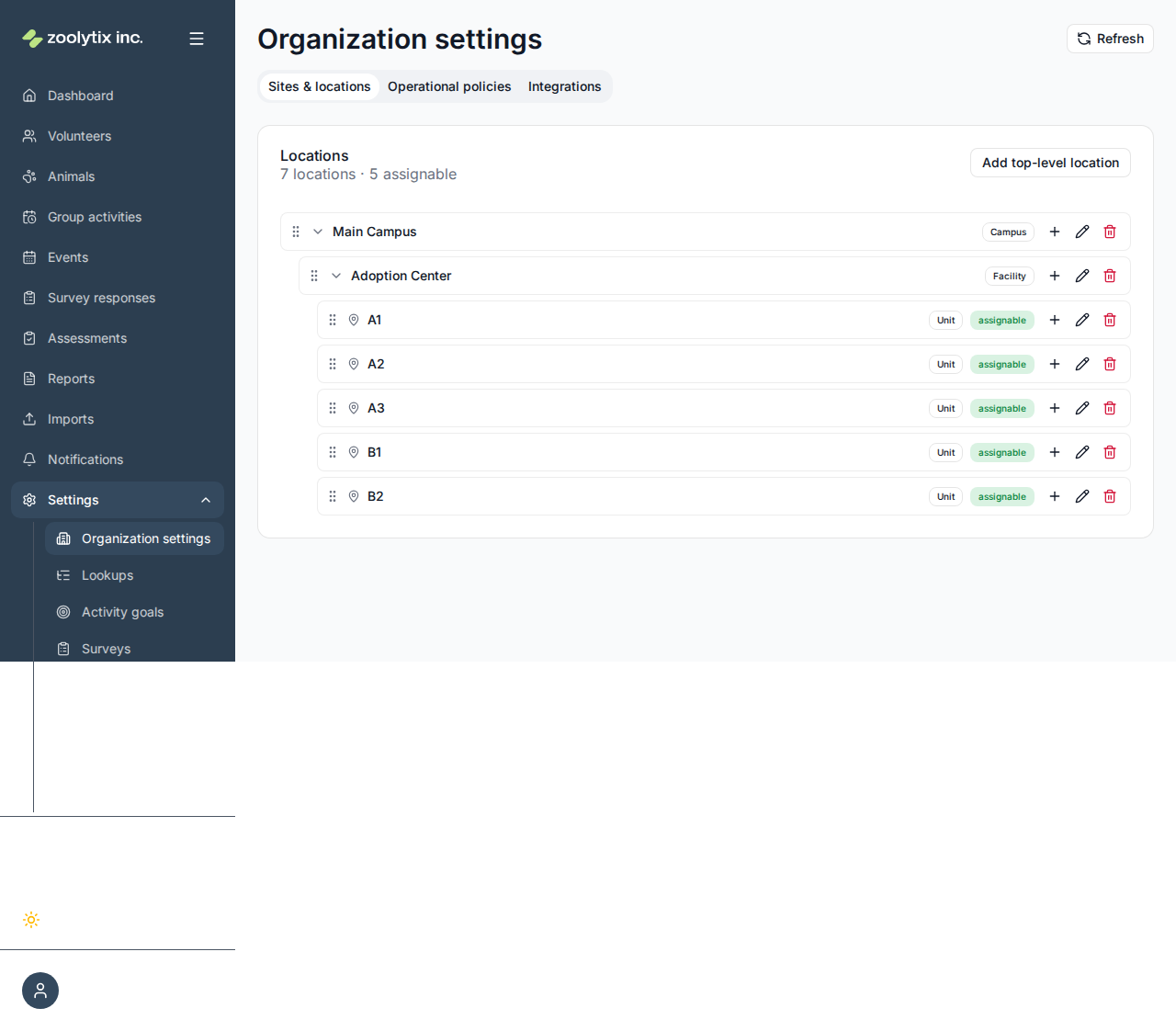
Your shelter is described as a tree of places — a campus or site at the top, the facilities inside it, and the individual areas or kennels at the bottom. Every animal lives at a location in this tree, so an accurate tree keeps the rest of the app accurate (filtering by location, checking animals in and out, reporting).
Each location has a kind (campus, facility, area, or unit) and says what it's for — see below.
To manage the tree:
- Add a location — use Add top-level location for a new site, or the + on a row to add a child beneath it. A place missing from an activity's Suggested locations can also be added from there, without leaving the plan setup wizard.
- Edit or delete — use the pencil and trash icons on a row. You can't delete a location that still has children or animals in it; move those first.
- Rearrange — drag a row by its handle to reorder siblings or move a location to a new parent.
Tips for structuring locations: mirror how your shelter is physically laid out, so volunteers recognize the names. Keep the level animals live at (kennels, runs, rooms) consistent — those are your Housing locations. Don't over-nest; two or three levels (site → building → kennel) is usually enough.
What a location is for
When you add or edit a location, tick what it's for:
- Housing — animals live here: a kennel, condo, run or room.
- Activities — animals are taken here for activities: a yard, a play area, a training room.
A cattery can be both. Tick neither for a location that only groups others, such as a campus or a building. The tree shows each location's marks beside its name.
Each screen offers only the locations that fit it:
| Where you pick a location | Offers |
|---|---|
| An animal's location — intake, editing an animal, a transfer | Housing |
| Where a check-out starts from | Housing |
| Where an animal goes back to when an activity or a check-out ends | Housing |
| Where an out-of-housing activity or a check-out takes an animal | Activities |
| Where a group activity happens | Activities |
| An activity's suggested locations, in the plan setup wizard | Activities |
The same rule holds if something tries to save a location that doesn't fit — ShelterSync refuses it and says which mark is missing. A location is accepted whatever its marks only in these cases, none of which places an animal anywhere new:
- Editing or transferring an animal — the location it already has.
- Starting an activity — leaving the animal where it is.
- Starting a check-out — starting from, or leaving the animal at, where it is.
- Ending an activity — back where the activity found the animal; or, with no place named, the place ShelterSync chooses, which is where the activity found the animal or, if the activity did not move it or someone has moved it since, where it is now. Override end fills in that same place.
- Ending a check-out — back where the check-out started.
- A group activity or an activity's suggested locations — a location it already has.
Anything else needs the mark — so ending a check-out where it took the animal, such as the yard it went to, needs a location marked Housing.
For now, starting and ending an activity accept any location marked Housing or Activities. Phones still on version 0.37.0 of the app don't know about the two marks: they offer every marked location both as where an animal is going and as where it goes back to, so ShelterSync accepts either mark for those two steps whichever app sends them. A location with neither mark is still refused. The web app and updated phones still offer only the locations in the table above.
If your shelter used ShelterSync before this setting existed: every location that was marked as a place animals can be placed is now marked Housing, and nothing else. Until you mark somewhere Activities, an out-of-housing activity on an updated phone can only stay where the animal is, a check-out can only leave the animal where it is, you can't schedule a new group activity, and there is nothing to pick as a suggested location. Mark your yards and play areas Activities to fix all four. Suggested locations you had already chosen stay saved.
Operational policies
This tab holds organization-wide settings: the timezone, your branding, the security and access rules below, and the volunteer inactivity policy.
Staff don't see this tab. Everything on it is for administrators, including the inactivity policy, because the people who can restrict volunteers should be the people who can open the Volunteers page and see whom a restriction affects.
Organization timezone
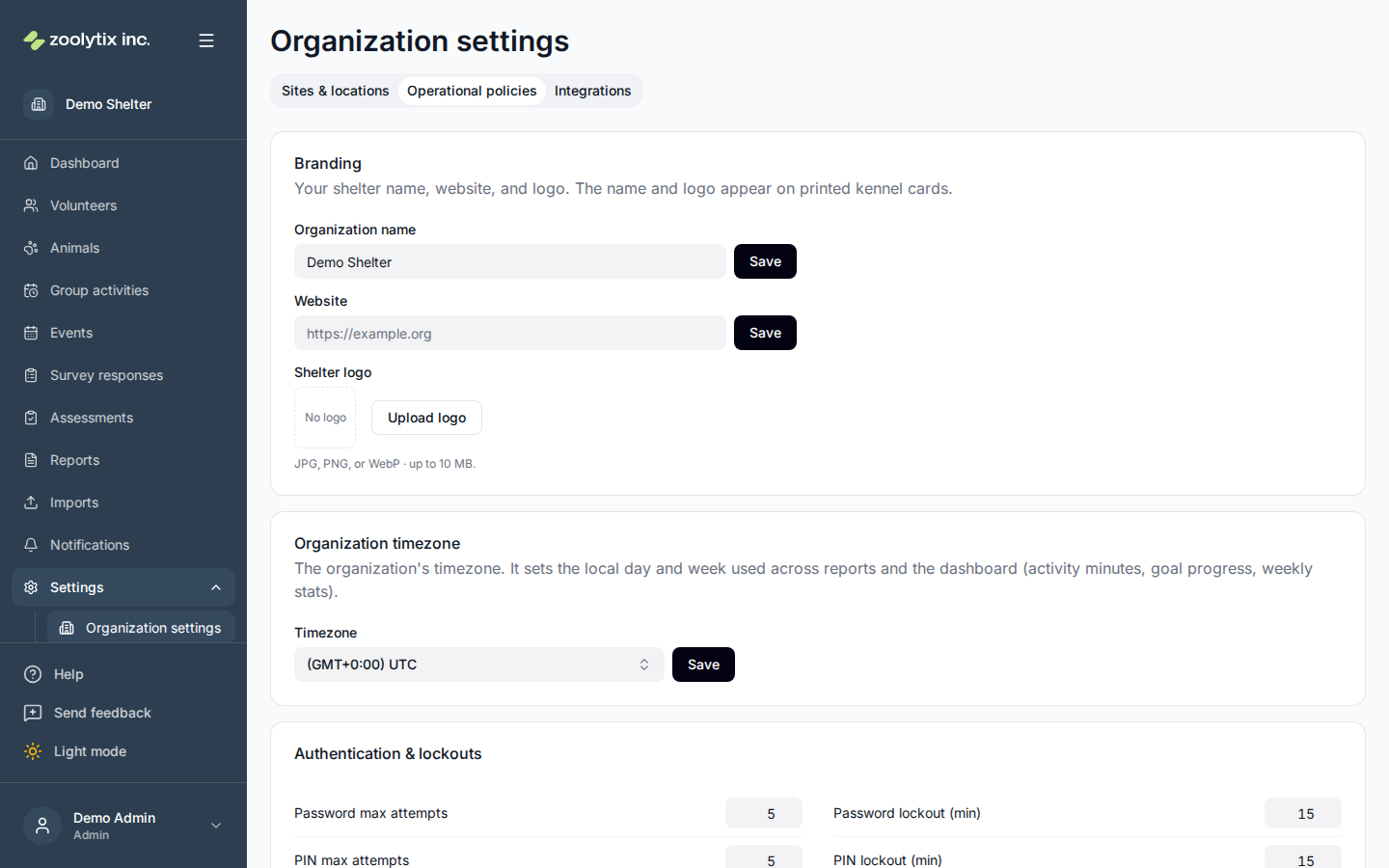
Set your shelter's timezone from a searchable list — each option shows its UTC offset, e.g. (GMT-5:00) Chicago. Type a city or region to find yours. This is the timezone the whole app reckons a "day" and "week" in: reports and the dashboard (activity minutes, goal progress, weekly stats) all use it, so a day lines up with your shelter's clock rather than UTC. The reporting-window options further down (day start, week start) build on this timezone. The default is UTC.
Branding
The Branding card holds how your shelter presents itself:
- Organization name — your shelter's display name, used across ShelterSync — including the header at the top of the volunteer phone app — and on printed kennel cards. If your shelter rebrands or corrects its legal name, edit it here and select Save — in the web app the change takes effect immediately, no re-login needed. The phone app keeps the name it was given when the volunteer signed in, so volunteers see the new name the next time they sign in. The name is required and can be up to 200 characters.
- Website — your public website address (a full
http(s)link). Leave it blank to clear it. - Shelter logo — an image (JPEG, PNG, or WebP) that appears on printed kennel cards alongside your name, and at the top of the sidebar on every page, while the sidebar is expanded, where it takes the place of the ShelterSync mark; ShelterSync moves to a small "Powered by Zoolytix ShelterSync" line near the bottom of the sidebar. Your shelter's name stays under the logo, so the page can still be read at a glance. The logo sits on a light tile because it might be dark artwork drawn for white paper, and it is scaled to fit rather than cropped. Collapsing the sidebar leaves that slot a small square, which a wide logo cannot be read in, so your logo is never shrunk into it: collapsed, the sidebar shows the ShelterSync mark, and the organization badge under it names your shelter when you hover it. If you have not set one, the sidebar looks exactly as it did.
Sign-in and account protection
The numbers here are security thresholds, so it helps to know what each one does and what happens when someone crosses it.
First, a few terms:
- OTP (one-time password) — a short code (usually 6 digits) sent by text message to confirm it's really you.
- PIN — a 6-digit code a user can set for quick re-verification on a device they've already used.
- MFA (multi-factor authentication) — a second sign-in step beyond the password, using an authenticator app (and optionally a texted code or backup codes).
Sign-in lockout
- Failed-login limit and lockout duration — after this many wrong passwords, the account is locked for the set number of minutes and the person can't sign in.
- What happens when it's crossed: the user sees a "locked" message. They can wait for the lockout to expire, or an administrator can clear it early: open the person on the Users page and reset their lockout.
- The same idea applies to PIN attempts and OTP attempts, each with its own limit and lockout time. A texted or emailed code stops working once it has had the OTP attempts limit of wrong tries, even if the right code is typed next, and the person asks for a new one. For a sign-in code, the wrong try that reaches the limit also locks the account for the OTP lockout time.
Devices and extra verification
- Maximum devices per user — how many phones/tablets one person can have signed in at once.
The Role-based policies card lists your shelter's roles, one per row, with a tick box under each of these columns. Tick a role's box to turn that rule on for the role, then press Save role policies.
- MFA required — people in that role must set up multi-factor authentication.
- Allow SMS as MFA — people in that role who have turned on texted codes can use one instead of their authenticator app at sign-in. They still set up the authenticator app first.
- Device approval — a new device used by someone in that role must be approved by an admin before it can reach animal data (see Devices). A new shelter starts with Volunteer and Foster ticked, and you can tick or untick any role. With no role ticked, no approval is needed.
- SMS OTP required — people in that role must also confirm a one-time code at sign-in. The code is texted only to people who have turned on SMS verification codes on their own Profile & security page. Everyone else gets it by email. Turning on texted codes needs an authenticator app first and Allow SMS as MFA ticked for one of the person's roles, so someone in a role without that box ticked usually gets the code by email.
If users get locked out
A lockout is temporary — it clears itself after the duration you set. If someone needs back in sooner, an administrator resets the lockout from the Users page. If you find people are locked out often, consider raising the failed-attempt limit or shortening the lockout time here.
Volunteer inactivity policy
The Volunteer inactivity policy card restricts a volunteer automatically once they have gone a set number of days without volunteering. Restricting is not deleting: the volunteer keeps their account and history, and can be reinstated.
- Enable inactivity auto-restrictions switches the policy on.
- Threshold days is how many days without volunteer activity it takes. A volunteer with no activity yet counts from when their volunteer profile was created.
- Send pre-restriction warning notifications sends the volunteer an in-app warning during the last Warning window days before the threshold. The window must be shorter than the threshold.
- ShelterSync checks once a day. Run evaluation now checks straight away.
- When a check restricts a volunteer, everyone who can see restrictions (administrators, by default) gets a notification about it. Staff don't.
The Active restriction reasons card lists open restriction reasons, whatever applied them. Clear reason removes one. A volunteer stays restricted until every reason is cleared.
Integrations
If you use another system (such as ShelterLuv), connect it here so its data flows into ShelterSync. You enter the connection details once; the key itself is stored securely and is never shown again. After connecting, you can run a sync or remove the connection.
How often it syncs
Once an integration is connected, choose a sync schedule: every 15 minutes, 30 minutes, hourly, every 6 hours, daily, or Manual only. ShelterSync then keeps your animals up to date automatically on that schedule, and the card shows when the next sync is due.
- Pick a shorter interval (15–30 minutes) if you want near-real-time updates, or a longer one (6 hours, daily) to pull less often — useful if your source system limits how frequently you can call it.
- Choose Manual only to turn off automatic syncing entirely. Nothing syncs on a schedule, but you can still sync on demand with Sync now.
What a sync changes
- Only what differs from ShelterLuv. An animal whose details already match what ShelterLuv sends is left alone: nothing about it is saved again, apart from a note ShelterSync keeps, once for each stay, of the intake whose type it has looked up, and it gets no entry of its own in Activity & security log. Each sync still adds the entries for its own import. Each animal "update" entry a sync adds lists the fields that changed.
- An animal on an activity or checked out stays put. While an animal is on an activity, a group activity included, a sync does not move it or mark it available, so it stays where the activity took it; while it is checked out, a sync does not move it either. Its other details still update. If ShelterLuv shows that an animal on an activity has left the shelter, a sync offboards it and marks it unavailable at once, and the activity keeps running; when the activity ends, the animal stays where it is, unavailable. After the activity ends, or the animal is checked in, the next sync applies what ShelterLuv shows.
- An animal ShelterLuv still lists after it left. ShelterLuv can go on listing an animal as in care, Available for example, after its ShelterLuv history records its adoption, transfer or another outcome ShelterSync records. Once ShelterSync has offboarded such an animal, a sync that reads that history leaves it offboarded. Once the history shows the animal back in care, a sync puts it back in care. Reading the history needs a ShelterLuv API key with access to it. When a sync cannot read it, the animal's status follows ShelterLuv's list, as it does for an animal ShelterLuv counts as in its custody.
- Intake type. ShelterLuv's list of animals doesn't include an intake type, so a sync reads it from ShelterLuv's history. When that history gives one, it replaces the intake type ShelterSync holds, including one set in ShelterSync. For each animal on the list whose current stay began in the last 30 days, a sync reads the intake every time, asking ShelterLuv for only the last 38 days of your shelter's history, however long that history is. That relies on ShelterLuv honouring the date it is asked for. If it did not, a shelter with a long history could see new arrivals stay Unknown until their stay is more than 30 days old and they are looked up on their own; ShelterSync's logs record it on each sync where it happens. An animal on the list whose stay began earlier is looked up in its own history, up to 100 animals a sync: first each one that still needs a type for that stay (new to ShelterSync, Unknown, or come back in), newest stay first, then the rest in turn. So a change made in ShelterLuv to an older stay still comes through: with 300 such animals, usually within 3 syncs. It takes longer while animals are waiting for their first look-up, when ShelterLuv asks ShelterSync to slow down or a look-up fails, or when an automatic sync and Sync now run at the same time. An animal whose history gives no type for its stay, such as a service intake, keeps the intake type it has (Unknown, if it had none). Reading the history needs a ShelterLuv API key with access to it; without that access, a sync fills in no intake type.
Sync history
Each automatic or manual sync is recorded. Select View sync history on the integration to open a side panel listing recent runs — when each ran, whether it was scheduled or manual, whether it succeeded, and (for a failed run) the underlying error. A successful run also shows, of the animals ShelterLuv listed, how many it created, updated and left unchanged, for example "0 created · 2 updated · 172 unchanged". Runs recorded before ShelterSync kept these counts show none. The panel pages through older runs and closes with Escape or the × button.
Retiring this organization
Most shelters will never touch this. It matters if you are winding down: closing, merging into another organization, or ending a trial.
Zoolytix cannot mark your organization as disposable — the step that would allow its records to be replaced or wiped — while this is locked, which is how it stays unless you change it. If you are closing the organization down, unlock it for a short window and let Zoolytix know; it re-locks on its own when the time is up, and as soon as it has been used. You can lock it again at any time.
Two things are worth knowing:
- Unlocking does not delete anything. It only allows the organization to be marked disposable. Nothing is removed as a result of unlocking, and locking it again undoes it entirely.
- Nobody can do it quietly. If your organization holds any records, Zoolytix is shown exactly what is in it — how many animals, how much activity, how many people have signed in — and has to confirm those figures before the marking goes through. What they saw is kept in your audit log alongside the change, so it is on the record rather than in somebody's memory.
If somebody asks you to unlock this and you were not expecting it, don't. Ask Zoolytix directly first.
Fields explained
| Field | What it means |
|---|---|
| What it's for | Tick Housing for a place animals live — a kennel, condo, run or room — and Activities for a place animals are taken for activities, such as a yard or a training room. A cattery can be both. Tick neither for a location that only groups others, such as a campus or a building. Each screen offers only the locations that fit it: an animal's location, where a check-out starts from, and where an animal goes back to after an activity or a check-out come from Housing; where an activity or a check-out takes an animal, where a group activity happens, and an activity's suggested locations come from Activities. The exception, for now, is a phone still on version 0.37.0: it offers every location with either mark when an activity starts or ends, and ShelterSync accepts either there. A location that could hold animals before this setting existed was marked Housing, and nothing else, so mark your yards and play areas Activities yourself. |
| Organization name | Your shelter's display name, shown across ShelterSync — including the organization indicator at the top of the sidebar, and the header at the top of the volunteer phone app — and on printed kennel cards. Edit it in the Branding card on the Operational policies tab; in the web app, changes take effect immediately — no re-login needed. The phone app keeps the name it was given when the volunteer signed in, so a phone shows a new name the next time its volunteer signs in. The name is required and can be up to 200 characters. |
| Shelter logo | A JPG, PNG or WebP image of your shelter's mark, up to 10 MB. It appears on printed kennel cards next to your name, and at the top of the sidebar on every page, while the sidebar is expanded — where it takes the place of the ShelterSync mark, which moves to a small "Powered by Zoolytix ShelterSync" line near the bottom. Your shelter's name stays under the logo, so the page can still be read at a glance. The logo sits on a light tile, because it may be dark artwork drawn for white paper, and it is scaled to fit rather than cropped. Collapsing the sidebar leaves that slot a small square, which a wide logo cannot be read in, so your logo is never shrunk into it: collapsed, the sidebar shows the ShelterSync mark, and the organization badge under it names your shelter on hover. Remove it and the sidebar goes back to how it looked before. |
| Organization timezone | The organization's timezone, chosen from a searchable list that shows each option's UTC offset (e.g. "(GMT-5:00) Chicago"). It defines the local day and week used across the app's reports and dashboard — activity minutes, goal progress, and weekly stats — so a "day" lines up with your shelter's clock. Type a city or region to find a zone; the default is UTC. |
| Retiring this organization | A lock your organization holds over itself. While it is locked — which it is by default, and which it returns to on its own — Zoolytix cannot mark your organization as disposable, and it is that marking which would allow your records to be replaced or wiped. Unlock it only if you are closing this organization down and Zoolytix has asked you to. You choose how long the unlock lasts; it closes itself when the time is up, and as soon as it has been used. Locking it again at any time takes one click. |
| Device approval | A column in the Role-based policies card on the Operational policies tab. Tick it for a role and that role's new phones, tablets and browsers must be approved under Settings → Devices before they can reach animal data. A new shelter starts with Volunteer and Foster ticked and every other role unticked. Untick a role and its people no longer need an approved device the next time they sign in. |
| Sync schedule | How often this integration pulls updates automatically — every 15 minutes, 30 minutes, hourly, every 6 hours, daily, or Manual only. Choose Manual only to turn off automatic syncing and sync on demand with the Sync now button. The card shows when the next automatic sync is due. |