Appearance
Organizations
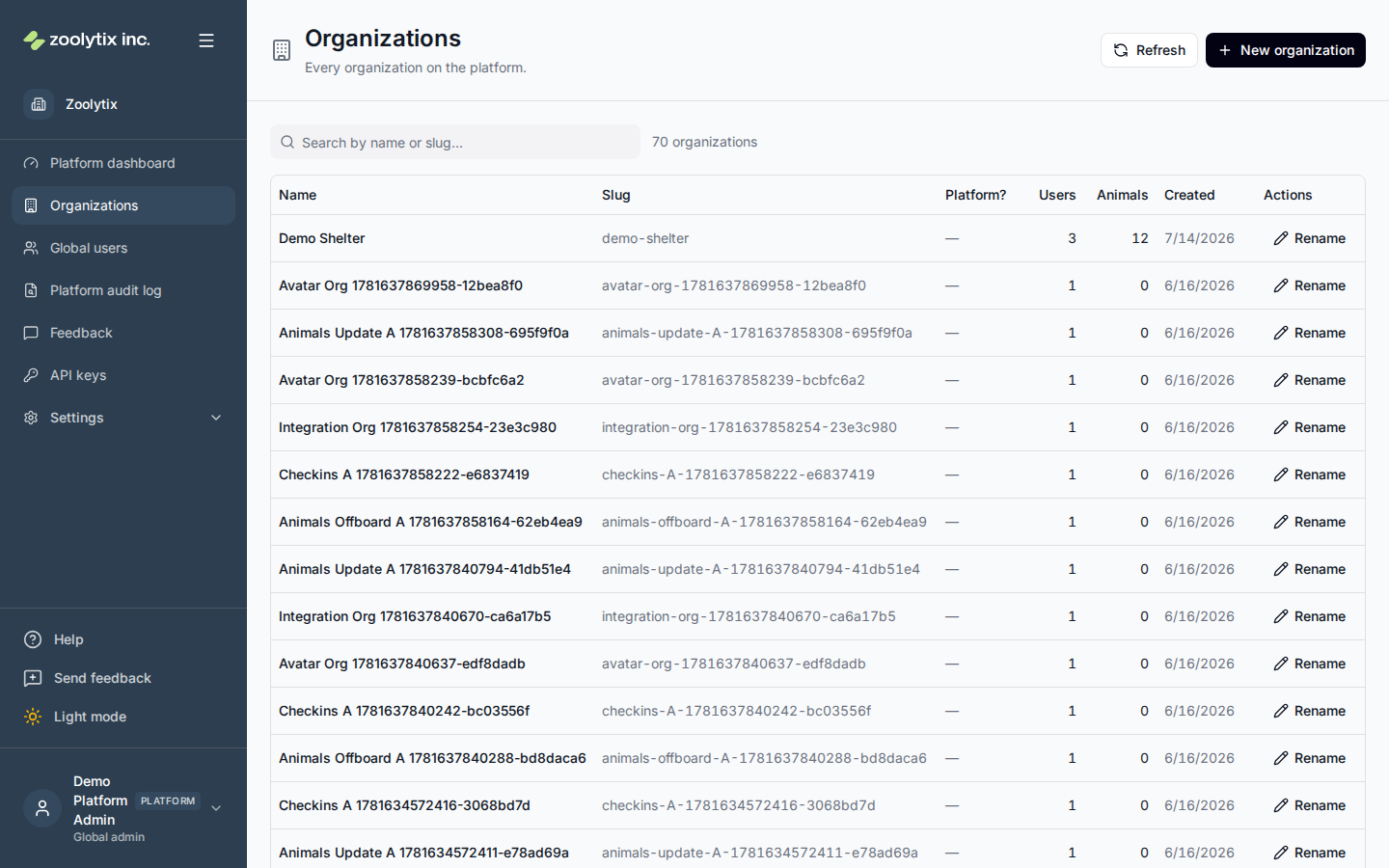
This page lists every shelter (organization) on ShelterSync. It's how the Zoolytix team finds a customer and looks into their account.
What you can do here
- Search for an organization
- Open an organization's detail
- Create an organization, with its first administrator
- Rename an organization
- Change an organization's sign-in, role, and password settings
- Deactivate an organization when its tenancy ends
- Reactivate an organization
- Delete an organization, through the platform API, and why one can be refused
Search by name to find an organization, and open one to see its profile — when it was created, how many users and animals it has, and a summary of its activity. Day-to-day shelter work still happens inside each organization, by its own staff.
Creating an organization
New organization builds the organization from the current provisioning template — its roles, permissions, lookups, locations and settings defaults — so it starts out shaped like every other shelter.
You can create its first administrator in the same step. Fill in their name and email and they are created as an admin of the new organization and emailed an invite link, which expires in 72 hours. Leave those fields blank and the organization starts with no people in it; add them later from Global users.
Two things worth knowing:
- Read the confirmation message. It says whether the invite was actually emailed. If it says the email could not be sent, the new admin has no way in yet — sort out email delivery before handing the organization over.
- Date of birth is optional, and useful. Everyone on ShelterSync must be at least 13. If you leave it blank the new admin enters it themselves while accepting the invite. If you set it, a password reset also works for them — which is the way back in if the invite email is lost.
Changing an organization's settings
From an organization's detail page you can change its sign-in and lockout thresholds, its role-based policies (which roles need MFA, device approval, or an SMS code), and its password rules — without signing in as one of that organization's administrators.
Two things to know before you do:
- A reason is required. It is written into that organization's own audit log next to the change, where their administrators can see it. Say what you changed and for whom.
- The change is theirs to see. These settings decide how the shelter's own people sign in. Turning off MFA or device approval for a role weakens protection for everyone in that organization, so treat it as something you would be comfortable explaining to them — because they can read it.
Renaming is separate, under the Rename button.
Ending a tenancy: deactivate and reactivate
When a shelter stops being a customer, its organization is deactivated, not deleted. Open the organization and choose Deactivate organization. You must give a reason; it is written to the audit log and shown on the organization's page for as long as it stays inactive.
Deactivating does four things, all at once:
- Keeps every record. Animal records, care history, and the accounts of the shelter's staff and volunteers all stay exactly as they were. Nothing is deleted and nobody is removed.
- Signs everyone out immediately. Every open session in the organization ends, and nobody can sign into it — in the web app, the mobile app, or with an API key — until it is reactivated. A person who also belongs to another shelter keeps that membership and can still sign in there.
- Disables its integrations and destroys their stored credentials. ShelterSync stops collecting from the shelter's third-party accounts and no longer holds the keys it was given to do so. This is the one thing deactivation destroys, and it is deliberate: a stored key is not a record.
- Marks the organization Inactive. It stays in the Organizations list with an Inactive badge, and its history stays in reports and cross-organization aggregates. The platform dashboard's operational counts leave it out, the same way they leave out seeded organizations. Use the Status filter to show only active or only inactive organizations.
Before you deactivate, produce any export the shelter has asked for. An inactive organization cannot be signed into, so its own people cannot export from it afterwards.
Reactivating
If the shelter comes back, open the organization and choose Reactivate organization, again with a reason. Its members can sign in again on their next attempt — the sessions ended at deactivation are not revived, so everyone signs in fresh.
Reactivating is not a full undo. The integration credentials destroyed at deactivation are not restored: each integration stays disabled until someone at the shelter reconnects it from their own Settings. Tell them this when you hand the organization back.
The Zoolytix platform organization itself can never be deactivated.
Deleting an organization
Deleting is for an organization that was never used, or one its own administrators have agreed can be thrown away (it is marked seeded). There is no button for it on this page: it is done through the platform API, and it cannot be undone. It removes the organization and everything recorded in it, but it deletes no one's account: each person's membership ends, and a person who belonged to no other shelter keeps an account with no shelter.
A delete, or a reset of a seeded organization, is refused, except in rare simultaneous cases, while one of its people has a confirmed deletion request that hasn't been carried out yet — in its 30-day grace period, or past it and waiting for the scheduled purge — and has no other shelter they can sign in to. Without a shelter they could not sign in, and signing in is how they cancel. The refusal says how many people are waiting and when the earliest of their grace periods ends (or ended); it doesn't say who. It goes ahead once each of those deletions has gone through, or been cancelled — 30 days at most, plus the time until the purge next runs. The demo seed's sample accounts never hold a delete up.
Fields explained
| Field | What it means |
|---|---|
| Reason for this change | Required whenever you change another organization's settings. It is written into that organization's own audit log alongside the change, so their administrators can see what was altered and why. Say what you changed and for whom — 'raising the device cap for the store-review organization' is useful; 'update' is not. |
| Status | Active organizations are customers whose people can sign in. Inactive ones have had their tenancy ended by the Zoolytix team: their records are kept, but nobody can sign into them until they are reactivated. All shows both; inactive organizations are never hidden from the list. |
| Reason | Required when you deactivate or reactivate an organization. It is written to the audit log and shown on the organization's page for as long as it stays inactive, so say what ended (or resumed) the tenancy and where the decision came from — 'contract ended 30 June, export sent to the director' is useful; 'closing' is not. |
| First admin | Optional. Filling in a name and email creates that person as the organization's first administrator in the same step, and emails them an invite link that expires in 72 hours. Leave it blank to add people later from Global users. Watch the confirmation message: it tells you whether the invite was actually emailed. |
| First admin date of birth | Optional, and only for the first admin. Everyone must be at least 13. If you leave it blank they enter it themselves when they accept the invite; if you set it here, a password reset also works for them, which is the way back in if the invite email never arrives. |